Product Tour
This is a screen-by-screen tour of JobCtrl, in the order you actually use it: set up your profile, configure discovery, run the pipeline, then review and apply. Every image below is generated from synthetic sample data, so nothing here is a real person, a real resume, or a real job.
Click or tap any screenshot to zoom. On small screens, swipe the screenshot sideways first when you want to inspect the actual controls.
Set Up Your Profile
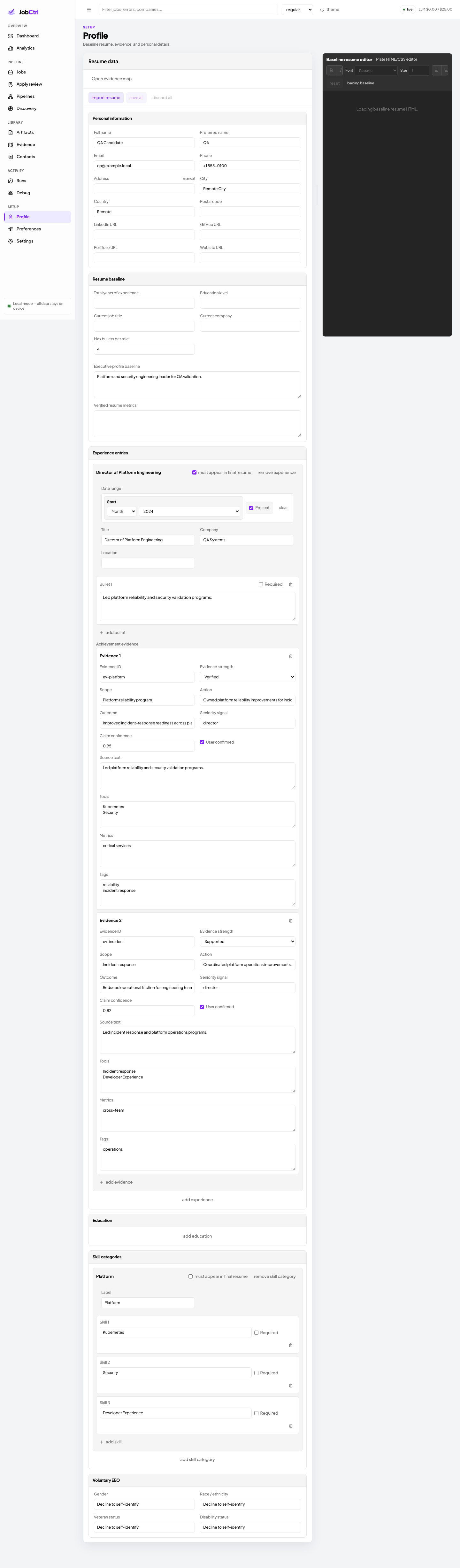
Everything starts here. The Profile page collects your personal details, work authorization, experience, education, skills, and the baseline resume that tailoring builds on. This is the single source of truth JobCtrl scores and tailors against, so the more accurate it is, the better every later step works.
What to do here: fill in everything you can and keep it truthful — every score and every generated resume builds on this page.
Configure Discovery
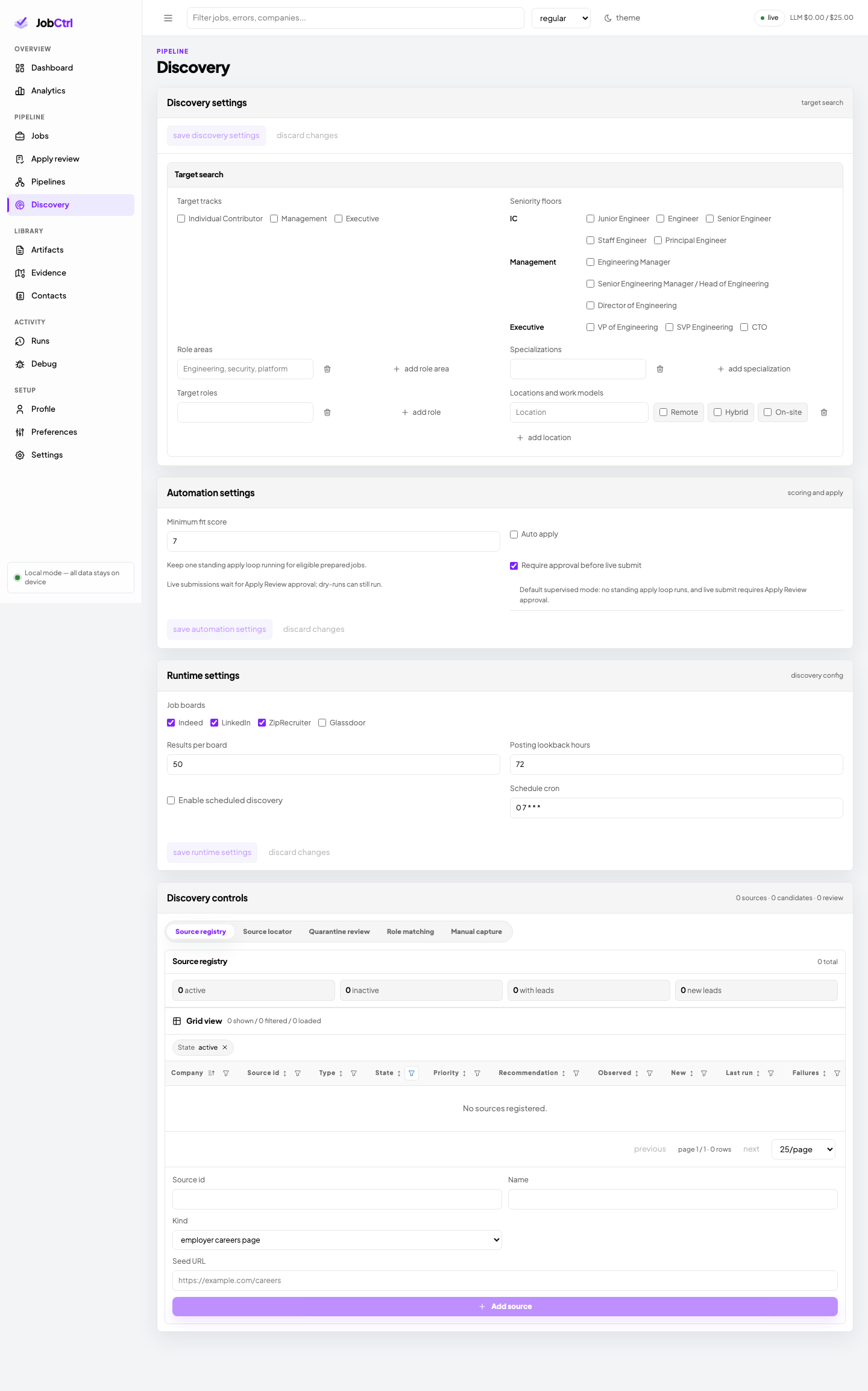
Next, tell JobCtrl what you are looking for. On the Discovery page you set your target roles, locations and work models, a seniority floor, a minimum fit score, and which job boards and sources to use. These settings drive every Discover run, so they decide which jobs even show up.
What to do here: set target roles, locations, and a seniority floor, and pick your boards. Tight targets beat broad ones.
Run The Pipeline
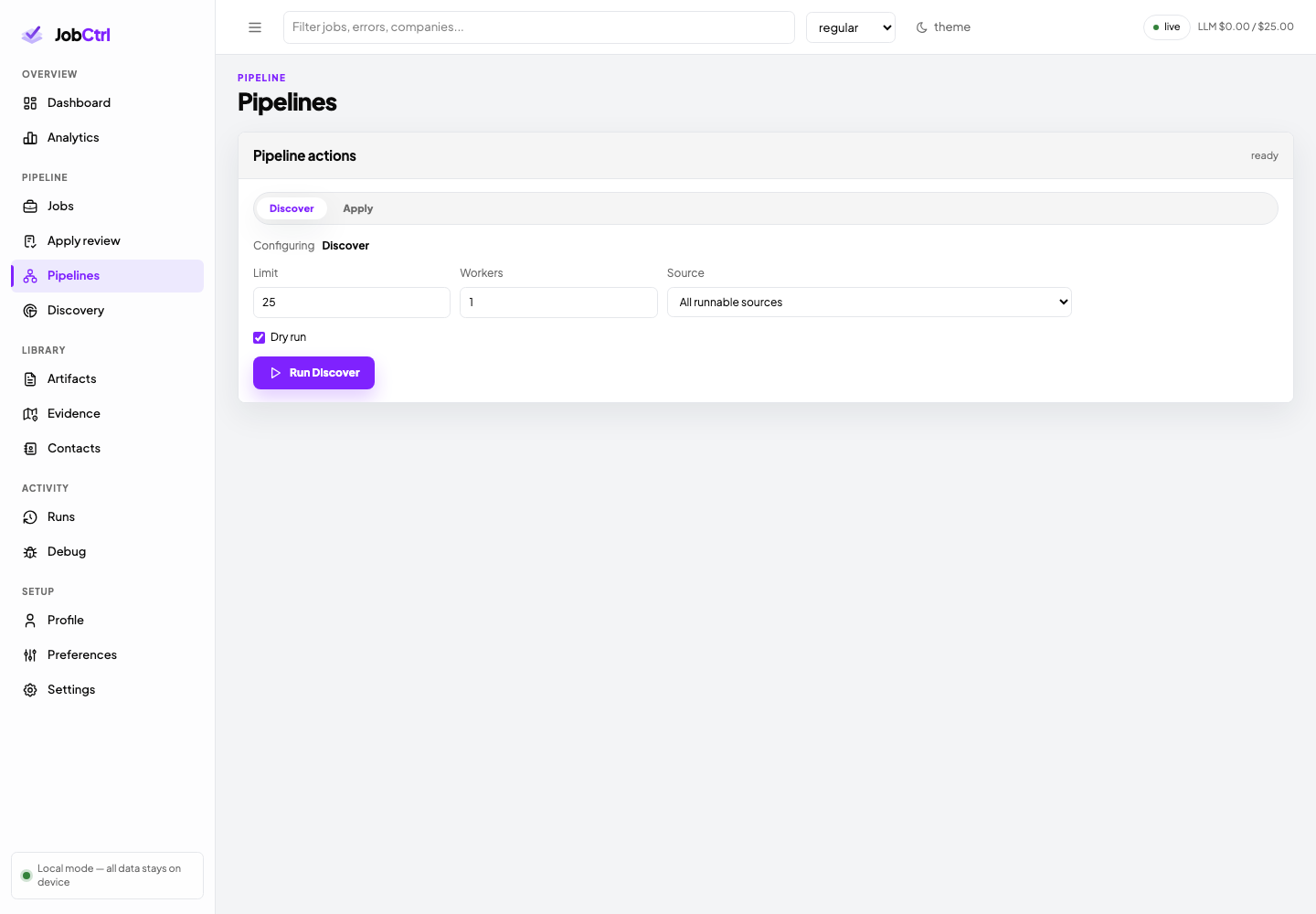
The Pipelines page is where you start work. Here you launch a Discover run and choose how far it reaches: a result limit, how many workers run in parallel, and a dry-run toggle. Discover does the heavy lifting — it finds jobs, then enriches, scores, and prepares tailored materials for the ones worth pursuing.
What to do here: start a Discover run; keep the limit small on your first runs so you can judge the results before scaling up.
The Dashboard
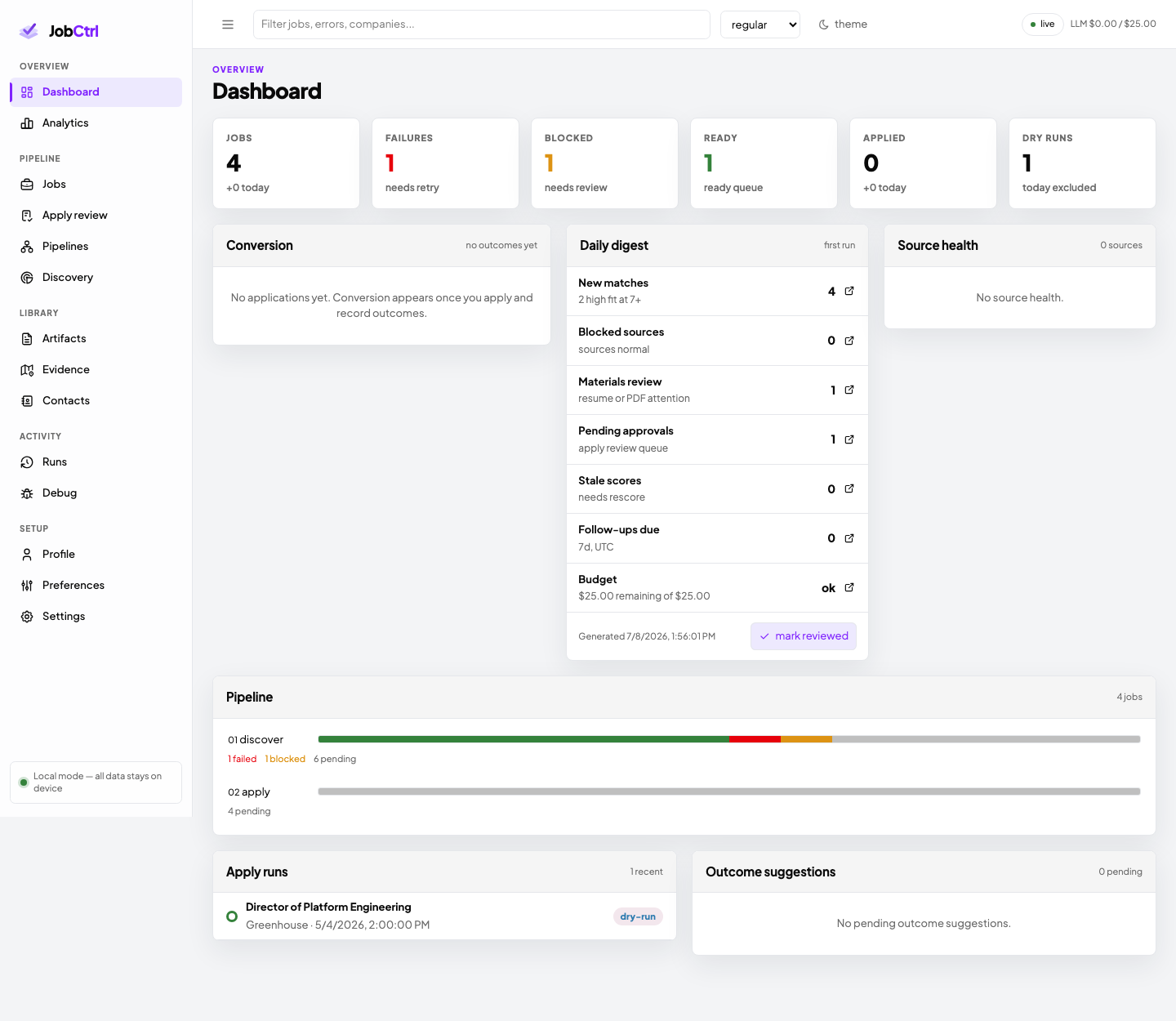
The dashboard is your home base. It summarizes pipeline progress, how many jobs sit at each stage, the health of your job sources, and your most recent apply runs. Check here first to see what happened while a run was working.
What to check here: whether your sources are healthy and where jobs are piling up between stages. An unhealthy source is the usual reason a Discover run comes back thin — fix it before running more.
The Jobs Table
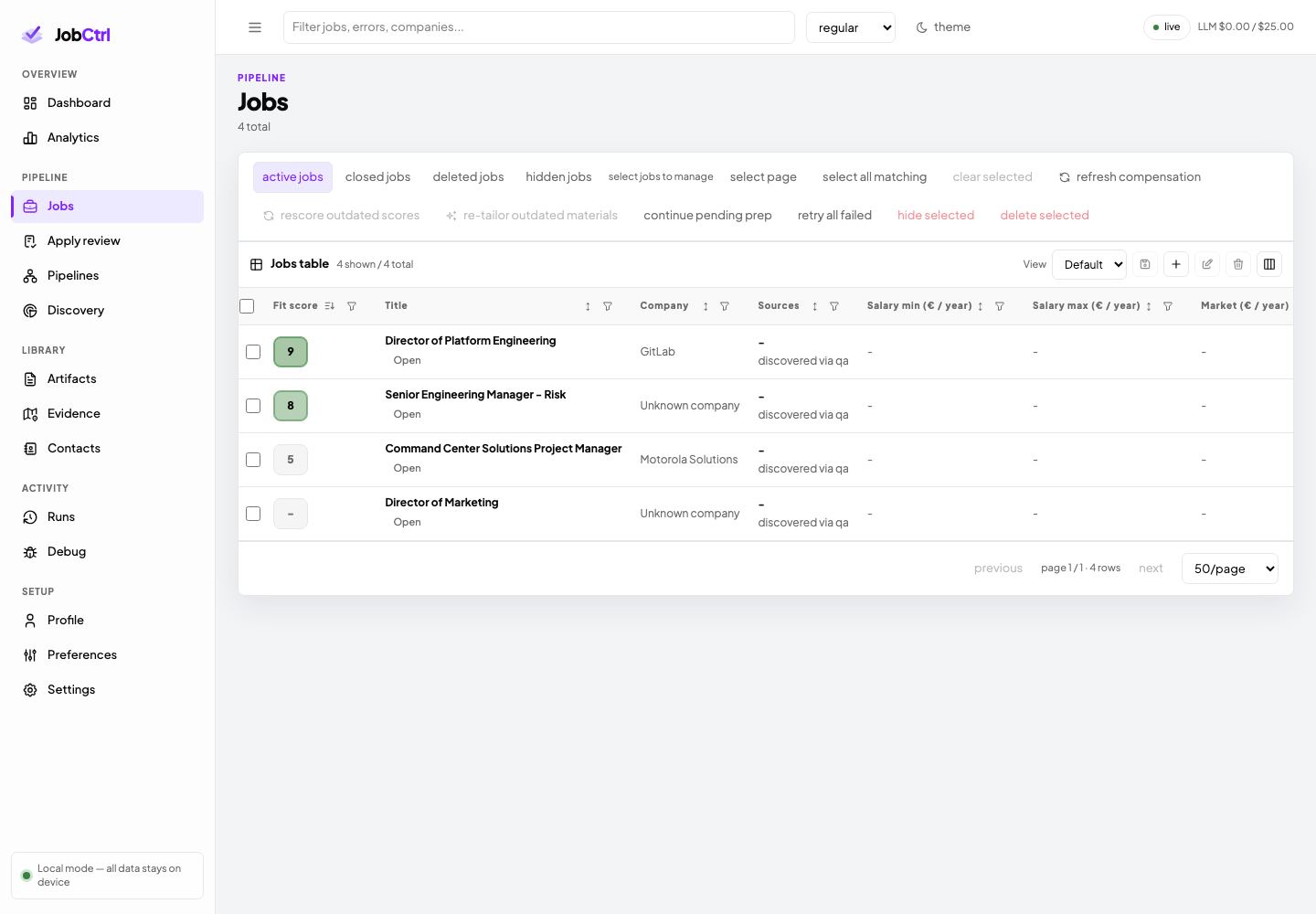
Every discovered job lands in the Jobs table, ranked by fit score. You can filter, sort, and triage in bulk — hiding jobs you do not want and focusing on the strongest matches. Compensation and company columns help you compare at a glance.
What to do here: sort by fit score, hide what you do not want, and open anything above your bar.
Job Detail
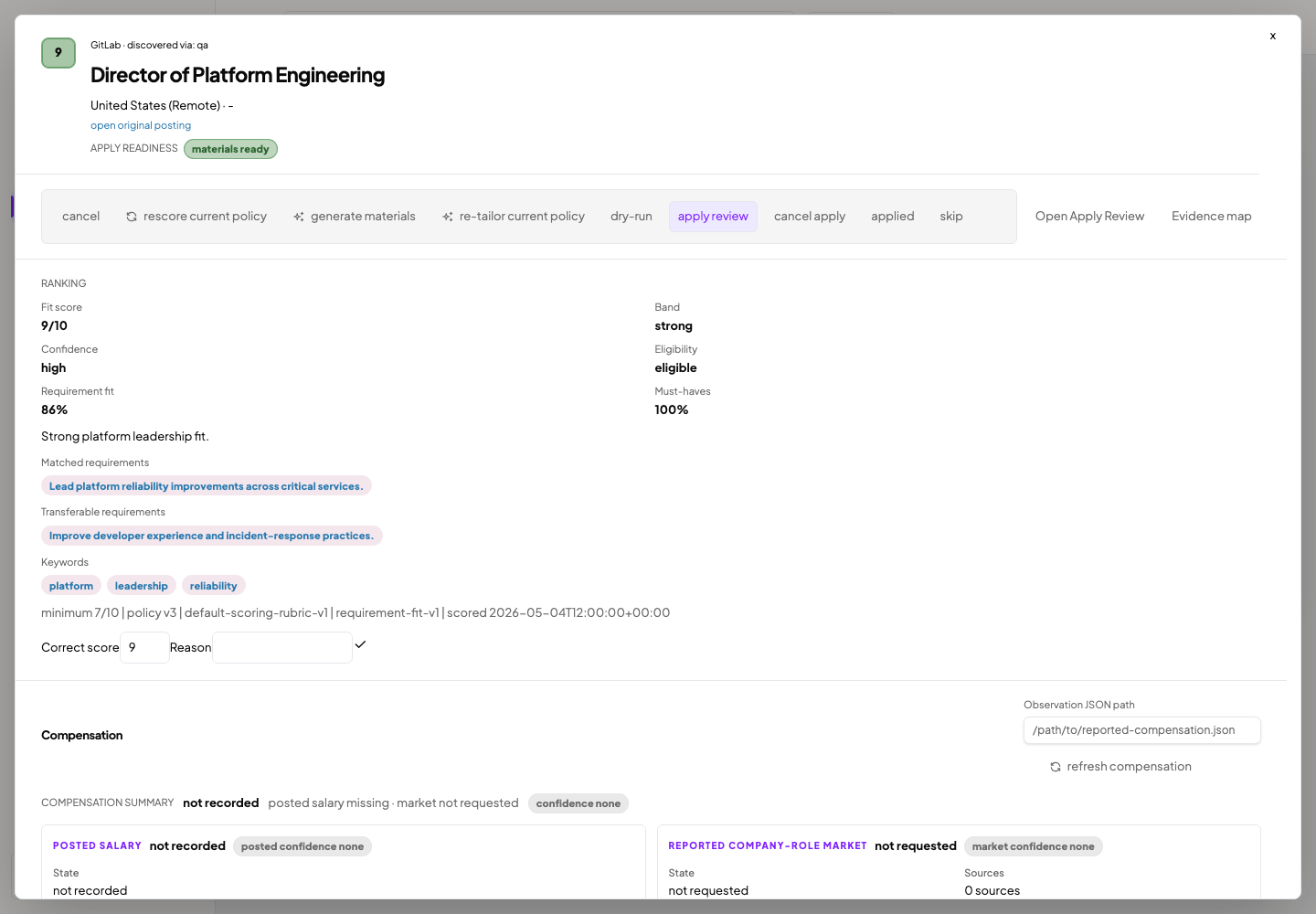
Click a job to open its detail drawer — the audit view for a single posting. It shows the fit score and why it was given, which requirements you match or fall short on, matched and transferable skills, keywords, and compensation evidence. This is where you decide whether a job is worth applying to.
What to decide here: whether the score's evidence convinces you this job deserves an application. Good looks like matched requirements you actually have; a red flag is a high score whose evidence you cannot personally back.
Apply Review
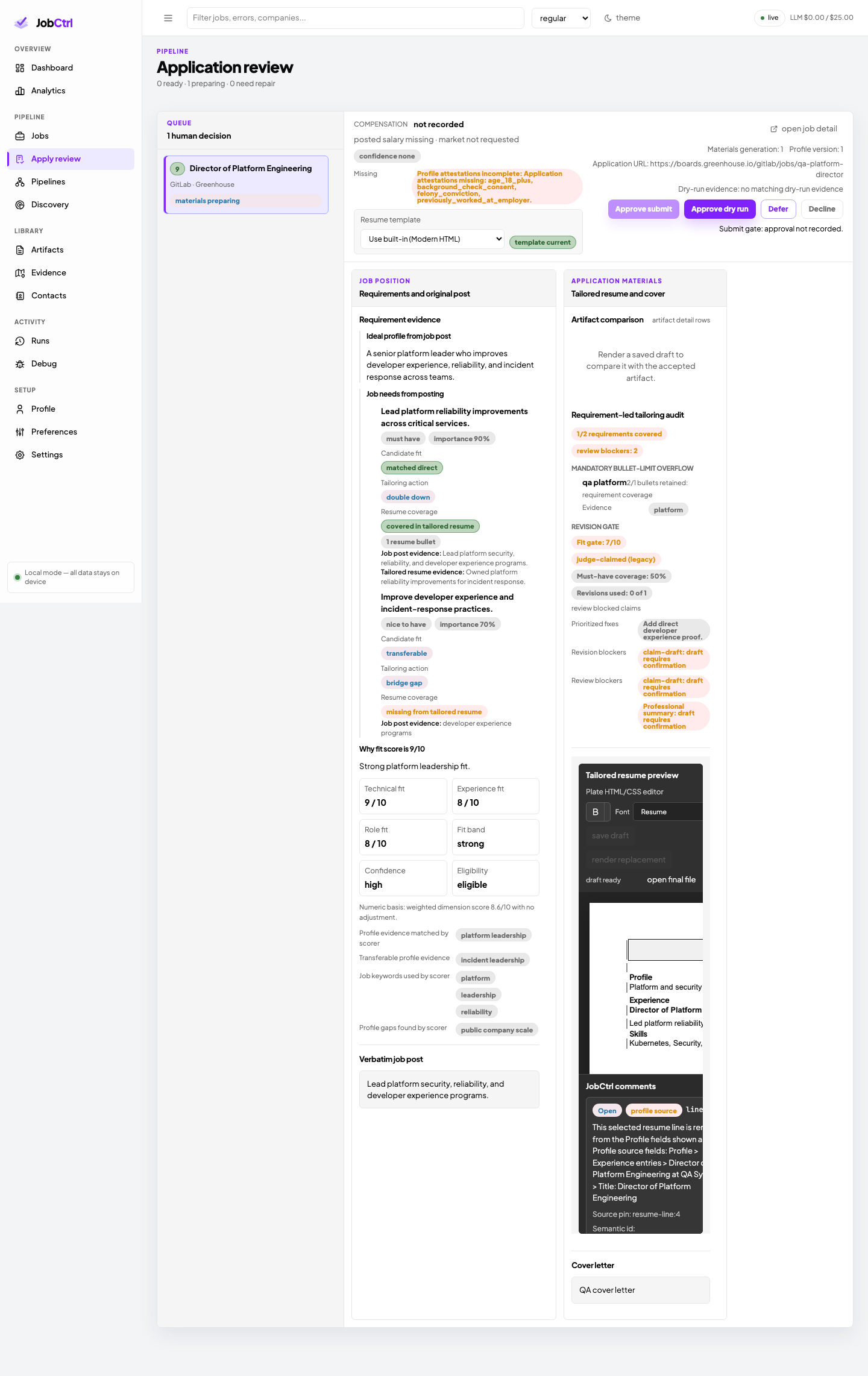
Apply Review is where you check and edit an application before it goes anywhere. It pairs the tailored resume preview with the job's requirements and the original posting, alongside JobCtrl's own line comments. You can edit the resume, reply to comments, and — only after saving and validating — approve a dry run or a real submission.
What to do here: edit until the resume reads right and stays truthful, rehearse with a dry run, and approve the submission when you are satisfied.
Runs History
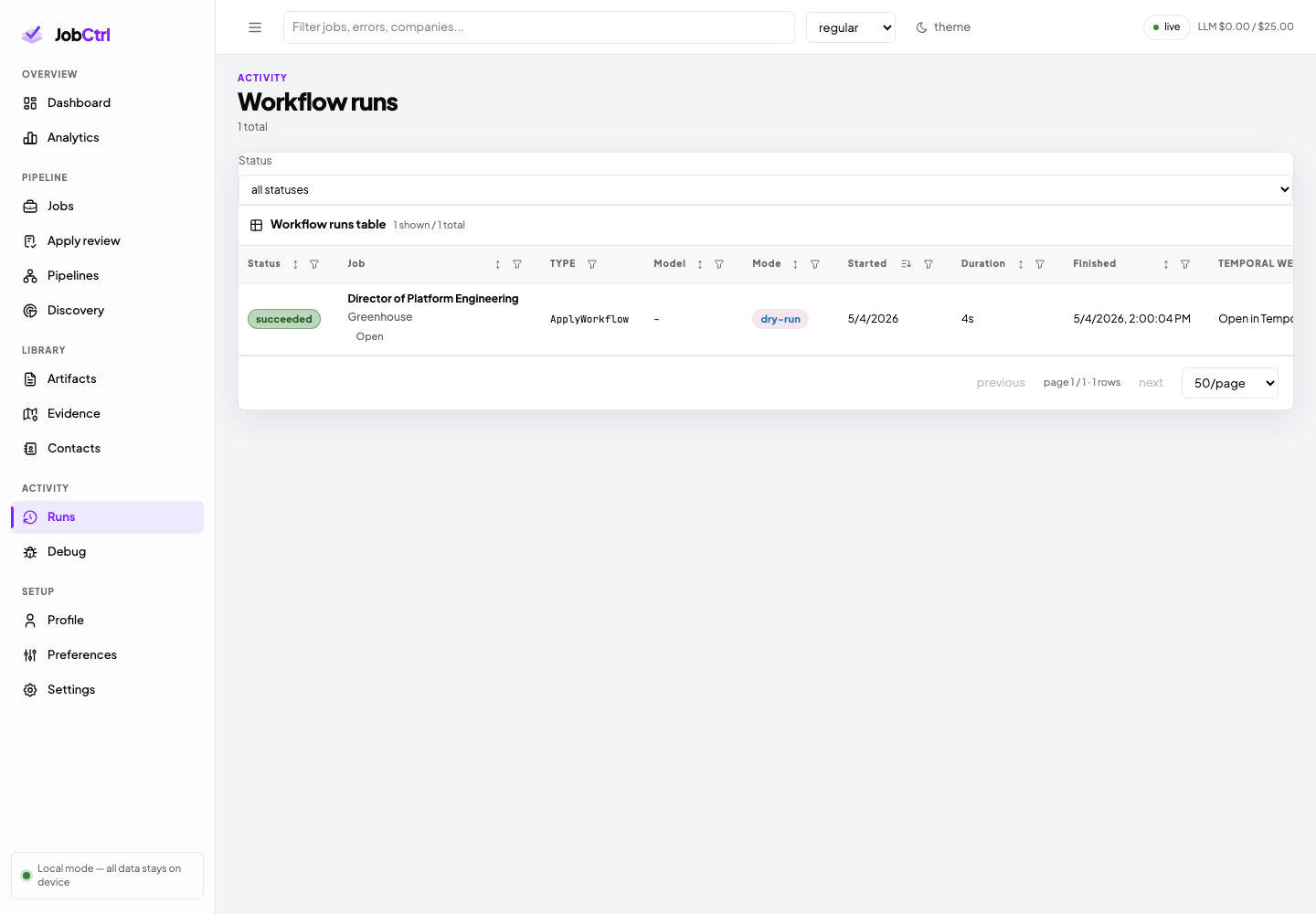
The Runs page is the history of every workflow run, with status, mode, timing, and a link into the web interface of Temporal, the workflow engine, for deep debugging. Come here to confirm a run finished, or to investigate one that failed.
What to check here: that runs finish. A failed run's Temporal link shows exactly which step stopped and why — that is your first stop before retrying.
Generating these screenshots
Screenshots are produced from synthetic data only and must never include a real profile, resume, company target, API key, log, browser state, or local path. See Documentation Screenshots for the command and the refresh checklist.