

Product Tour
This is a route-by-route tour of JobCtrl using synthetic sample data. Nothing shown is a real person, resume, employer target, application, credential, or local workspace. Click or tap an image to zoom. Follow the Daily Workflow for the sequence and safety gates that connect these surfaces.
Detailed work uses full route workspaces. Selecting a job, artifact, contact, run, or activity event opens a bookmarkable page with its facts, evidence, actions, and history together; it does not depend on a detached drawer. Each detail workspace has an explicit path back to its owning list. Jobs, Artifacts, Contacts, and Runs carry their URL-backed list state into that return path when it is present.
On desktop, the navigation rail groups the product into Overview, Pipeline, Library, Activity, and Setup. The desktop rail can collapse to labelled icons and remembers that choice across reloads. On mobile, the same destinations move into the navigation sheet and each workspace reflows in reading order.
Across routes, the compact page header presents the sidebar section and current page as a breadcrumb, keeps a short subtitle or count inline when space allows, and preserves a level-1 heading for assistive technology. Body copy uses the shared 14px/20px role in compact, regular, and comfy density; density changes row and control geometry, not readability.
Overview And Work Launch
Dashboard
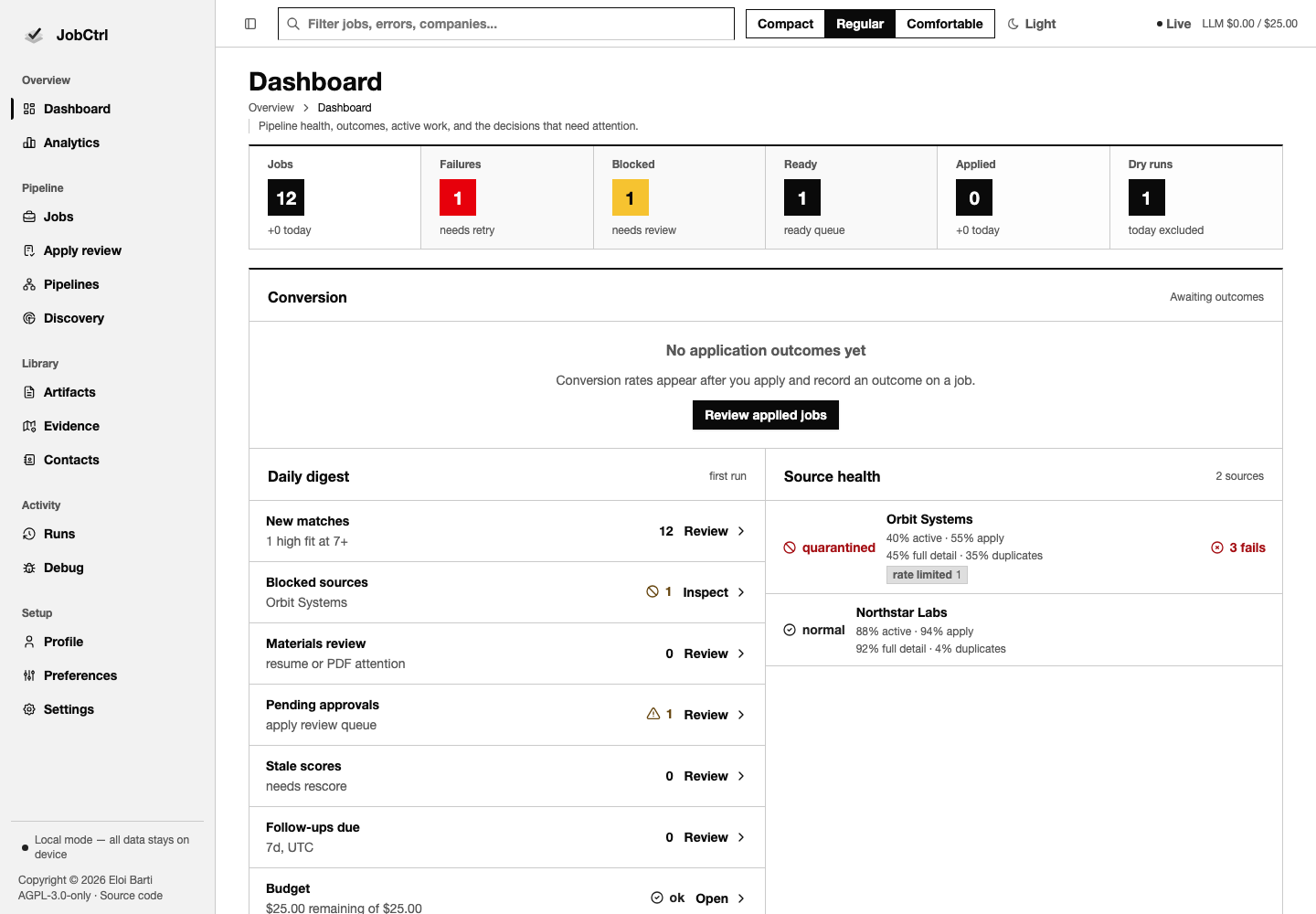
Dashboard is the starting operational summary: KPI and funnel facts, digest, work status, source health, active workflow and Apply runs, outcome conversion, and recent activity. Its links take you to the route that owns the underlying record instead of duplicating its full audit trail.
Analytics
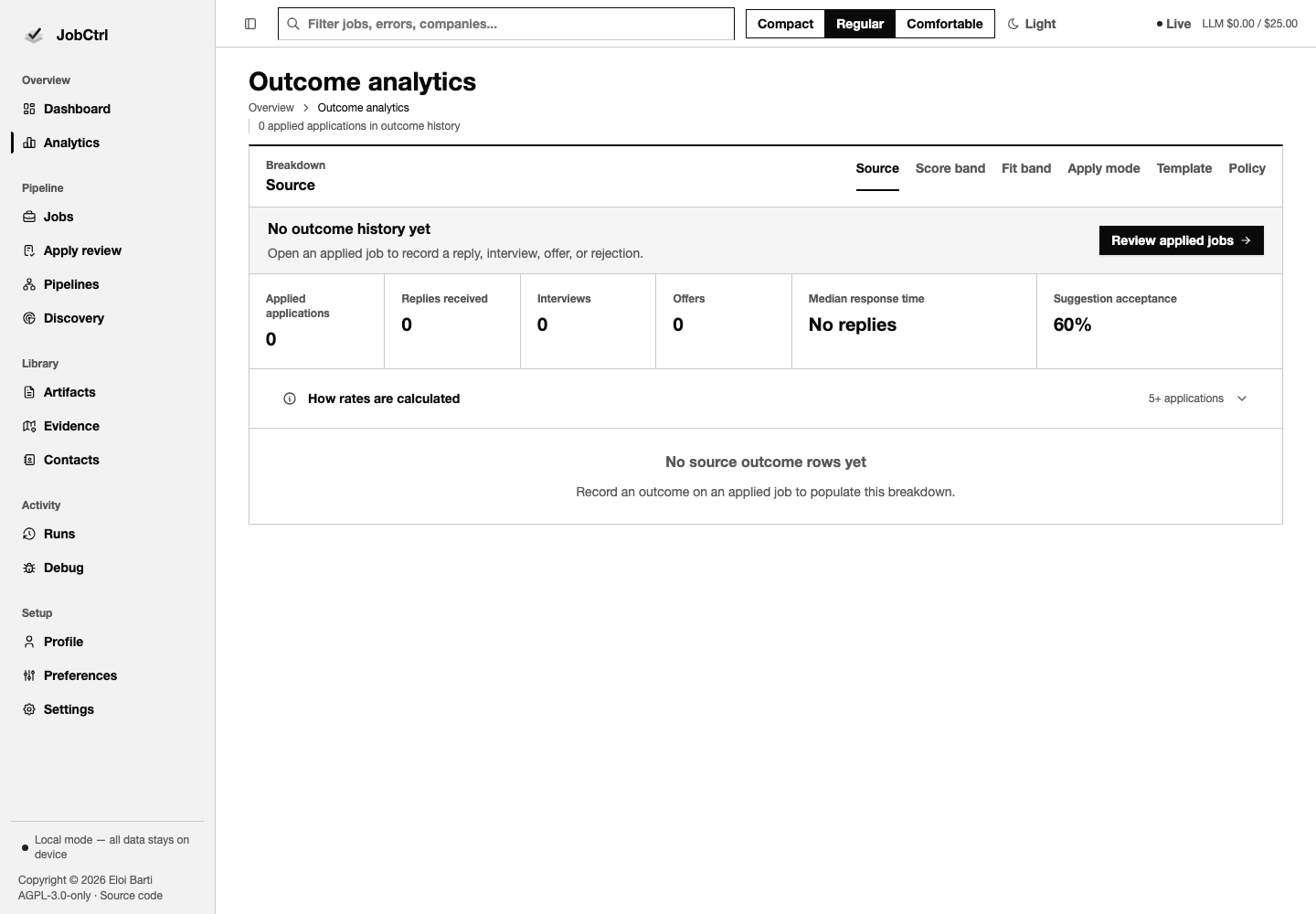
Analytics compares recorded outcome counts and sample-gated rates by source, score band, fit band, Apply mode, template, or policy. Small groups remain count-only and carry an explicit sample warning rather than implying reliable conversion rates.
Pipelines
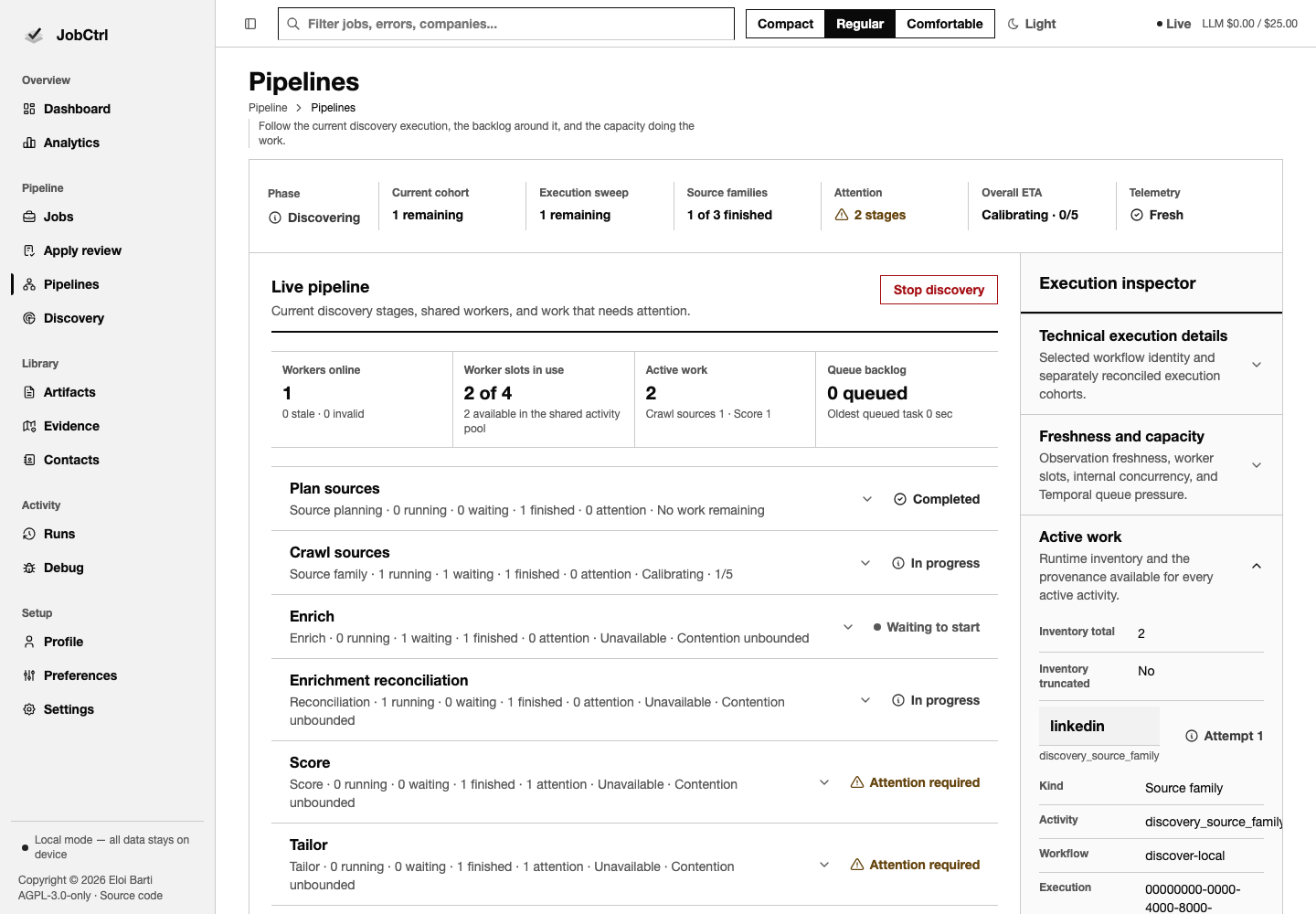
Pipelines combines launch controls with a live current-execution flow and collapsed backlog diagnostics. The Discover tab keeps limit, internal concurrency, source, and dry-run controls; Apply adds minimum score, model, headless-browser, continuous, and stop controls where applicable. Worker readiness and launch status remain visible in the action panel.
The workspace separates three scopes so their numbers are never conflated: Current execution is work admitted to the selected Discover run, Execution sweep is eligible backlog that run adopted, and Global outside execution is unrelated backlog. The execution inspector shows both cohort plans and remaining counts. Source-family crawling is reported separately from the two reconciliation steps that enrich intake and fan preparation out. Current-execution cards show active, waiting, processing, terminal, and attention totals first; All stage outcomes exposes every exact state. Backlog and diagnostics holds the sweep/global ledgers, worker slots, internal parallelism, approximate task-queue pollers/backlog/age/rates, read-model freshness, and the bounded active-work inventory. Calibrating, paused, stale, unavailable, and no-work ETA states stay explicit. Active discovery can be stopped here; replacement-run setup is offered only after an exact zero-active-work inventory, while provisionally missing history continues to reconcile automatically.
Discovery
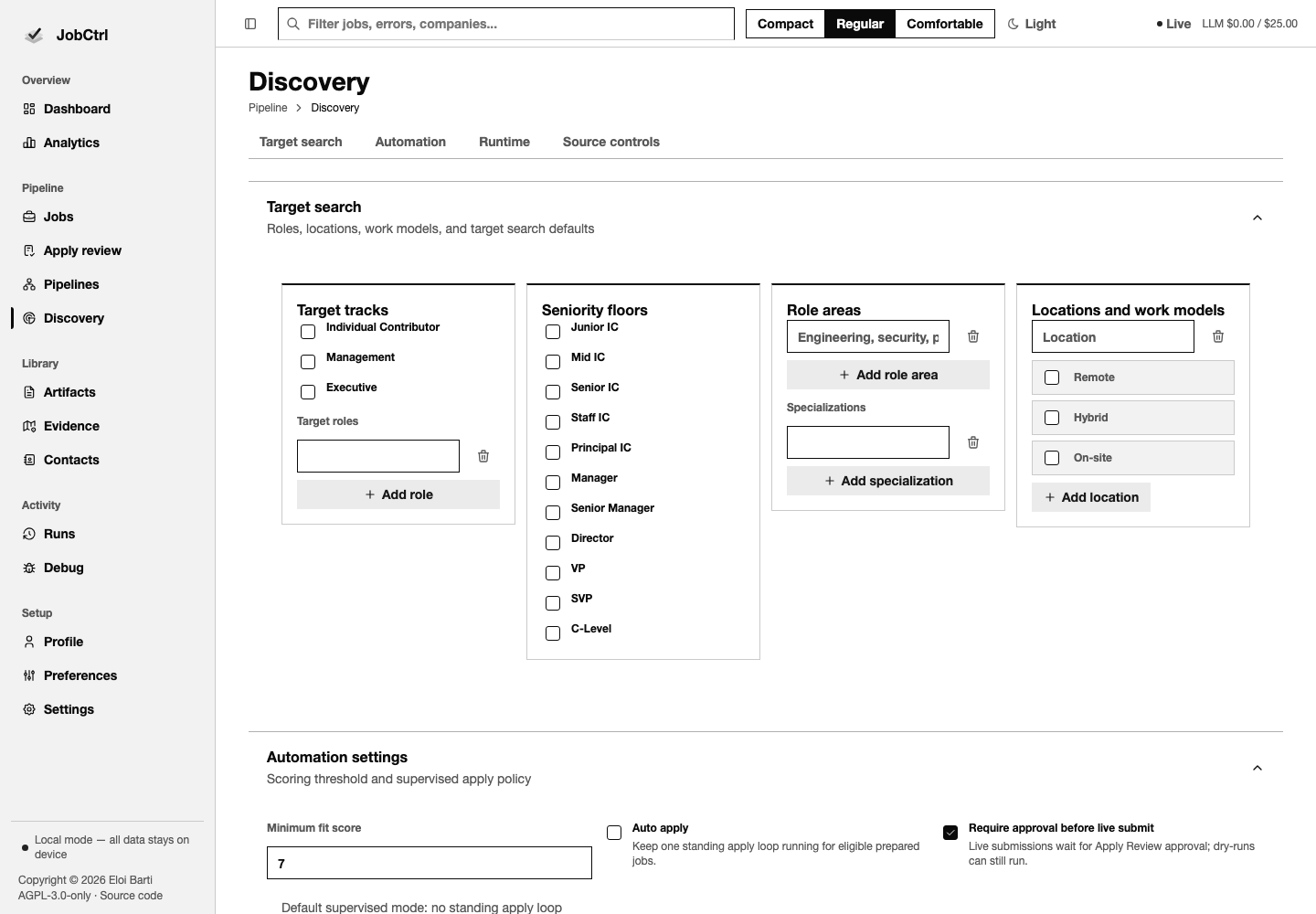
Discovery owns target search, source registry, scheduling, runtime and crawl policy, manual capture, quarantine decisions, and source diagnostics. These controls decide what can enter a Discover execution; Pipelines owns launching and observing that execution.
Jobs And Application Review
Jobs
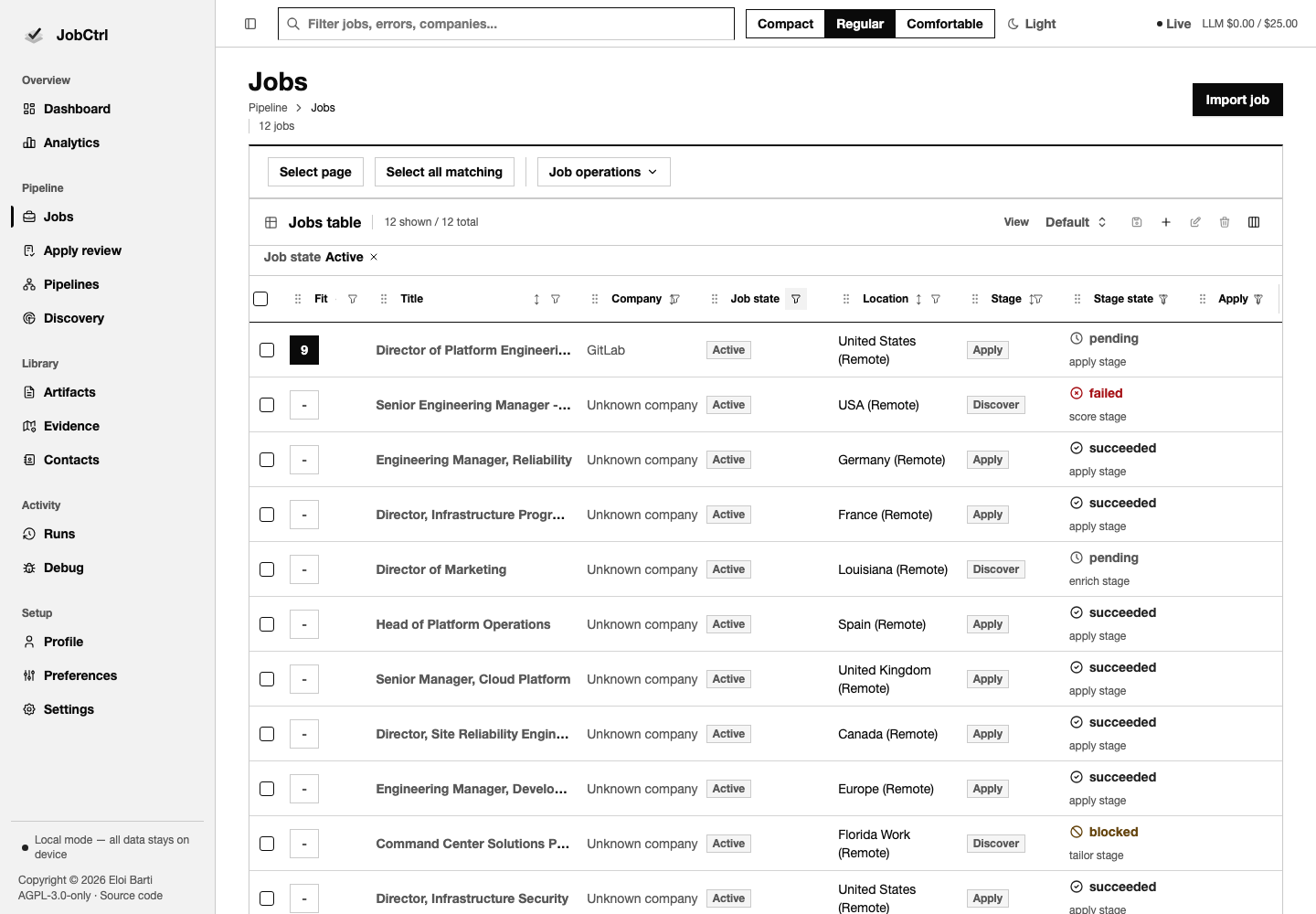
Jobs is the URL-backed triage table. Search, stage/state/apply filters, sorting, pagination, saved views, selection, columns, and bulk actions remain available before opening one record. The Job state column filter shows Active, Deleted, Hidden, or a combination in the same table and defaults to Active; legacy closed-posting links remain compatible without adding another control. The normal Active row omits redundant OPEN copy, and deletion is destructive. The default view focuses on fit, title, company, Job state, location, stage, stage state, and Apply status. Source, compensation detail, warnings, resume template, and discovery date remain available through Columns and saved views. A focus-only row action opens the record without filling the table with visible Open buttons.
Job Detail
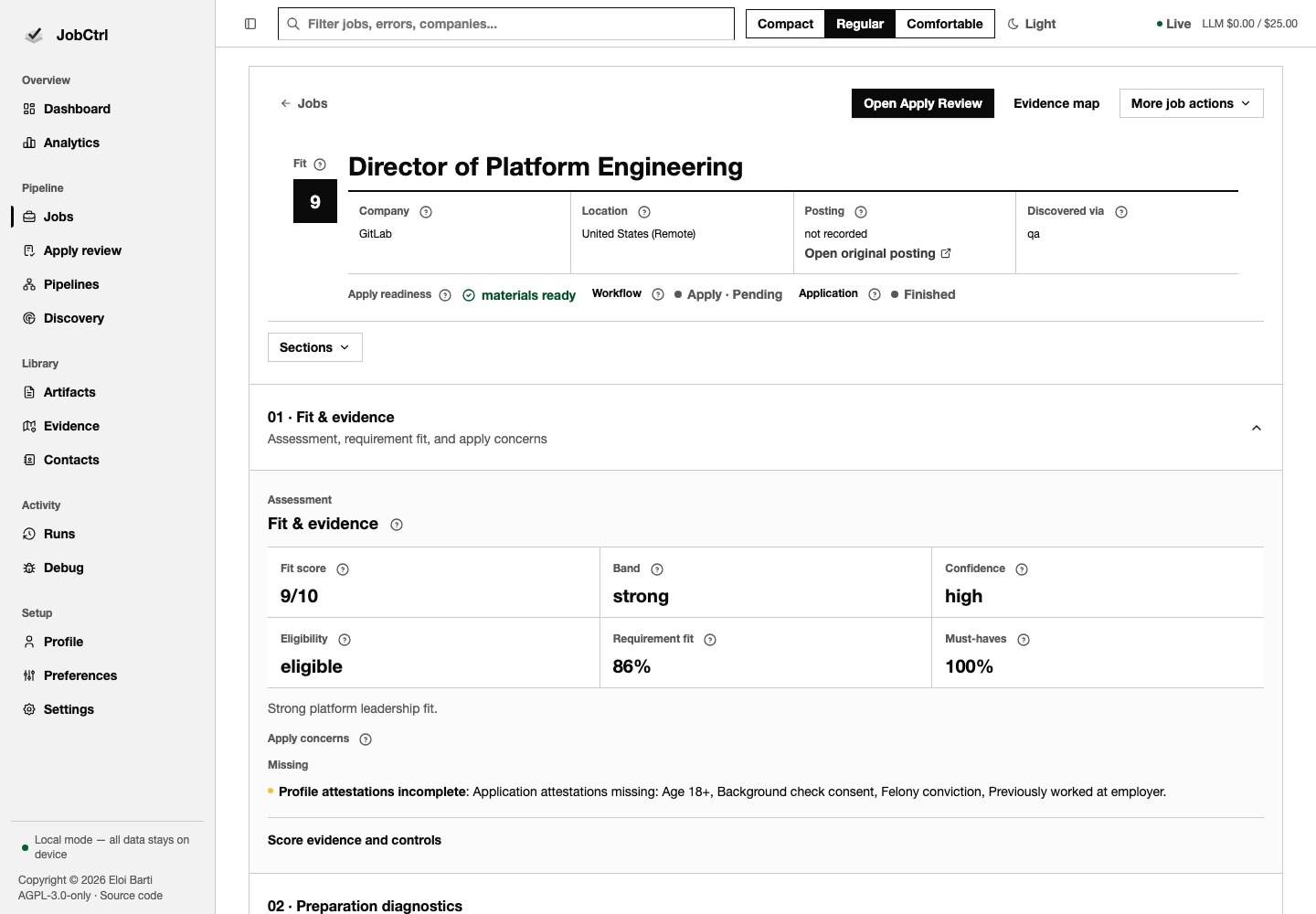
Job Detail keeps identity, score and requirement evidence, source provenance, compensation, description, employer analysis, interview prep, per-job actions, preparation diagnostics, active artifacts, Apply history, outcomes, contacts, and audit history in one route. Below the header, one full-width column keeps these sections in reading order on desktop and phone. Use Sections to jump to a section, or Expand all and Collapse all to change the level of detail. Collapsing a section keeps its forms and live state in place, including draft text. Labeled metadata separates company, location, salary, posting, and discovery source. The assessment strip keeps fit score, band, confidence, eligibility, requirement fit, and must-have coverage together; missing assessments remain explicit. Requirement evidence starts visible and can be collapsed independently. Links hand off to Apply Review and Evidence without losing the job context.
Job Run Timeline
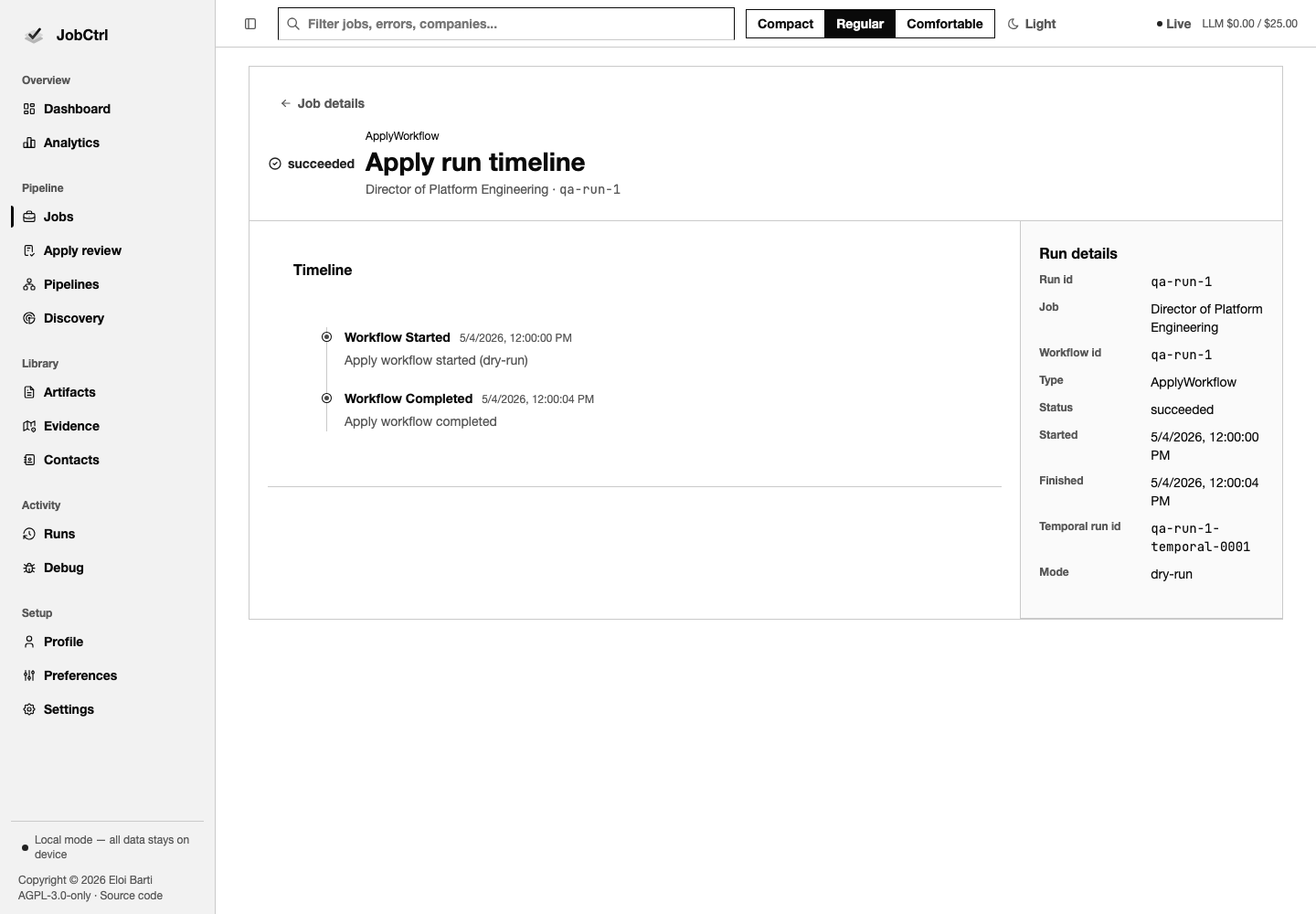
The job-scoped run route shows the selected workflow identity, mode, status, timestamps, failure facts, and event timeline, with direct navigation back to the owning job.
Apply Review
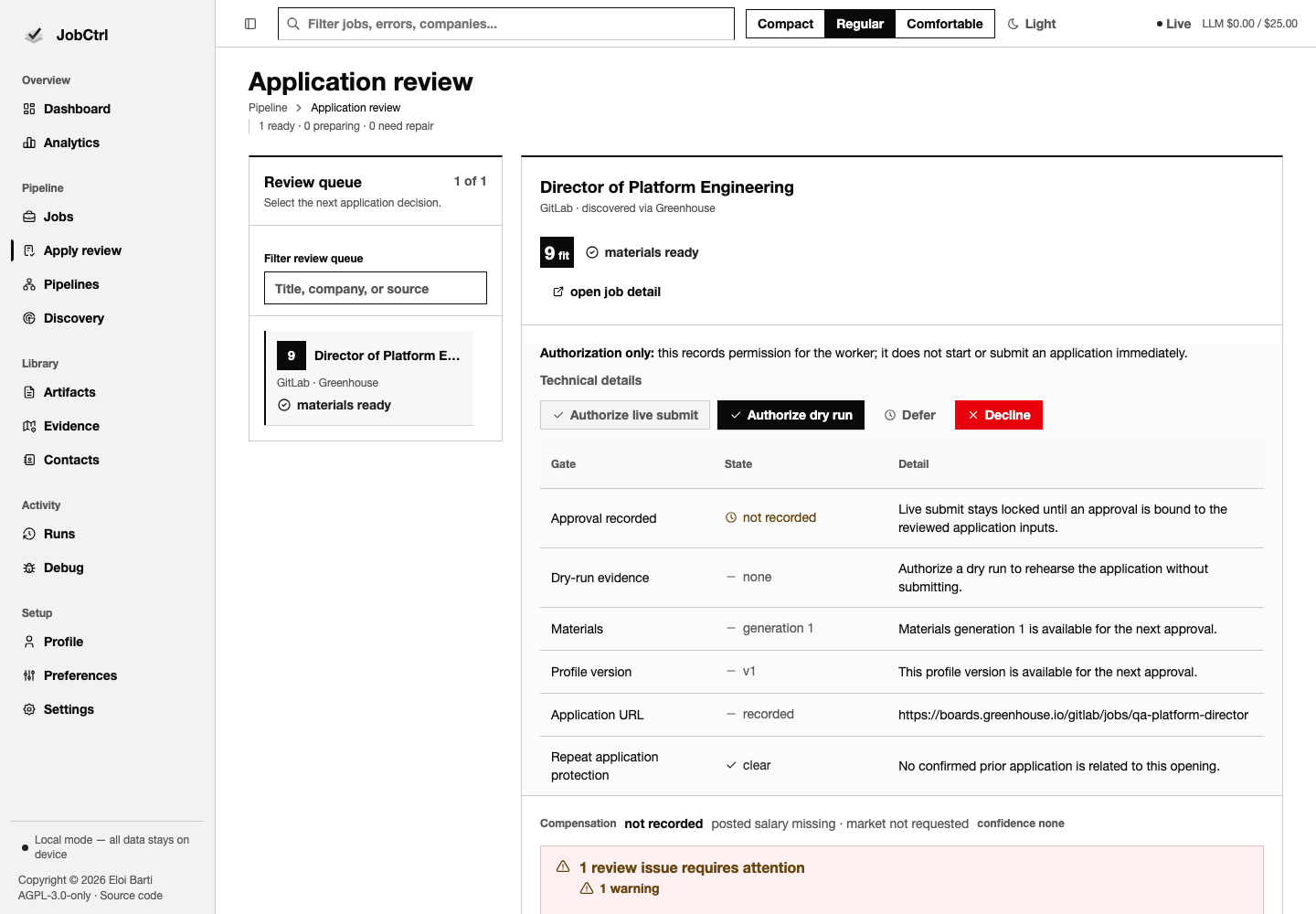
Apply Review pairs its queue with the complete selected application workspace: job and requirement evidence, fit rationale, tailoring directives and coverage, accepted/current artifacts, editable resume, cover letter or email, comparison, grounding/fabrication/judge warnings, dry-run evidence, and approval actions. A failed retry remains audit history and never hides the last accepted artifact. On desktop the queue remains a left rail and the selected review reads as full-width sections in sequence; narrow screens move the queue above the review and wrap its decision actions. The Submit gates table keeps each gate's state beside its explanation; see Apply for the approval boundaries.
Library And Evidence
Artifacts
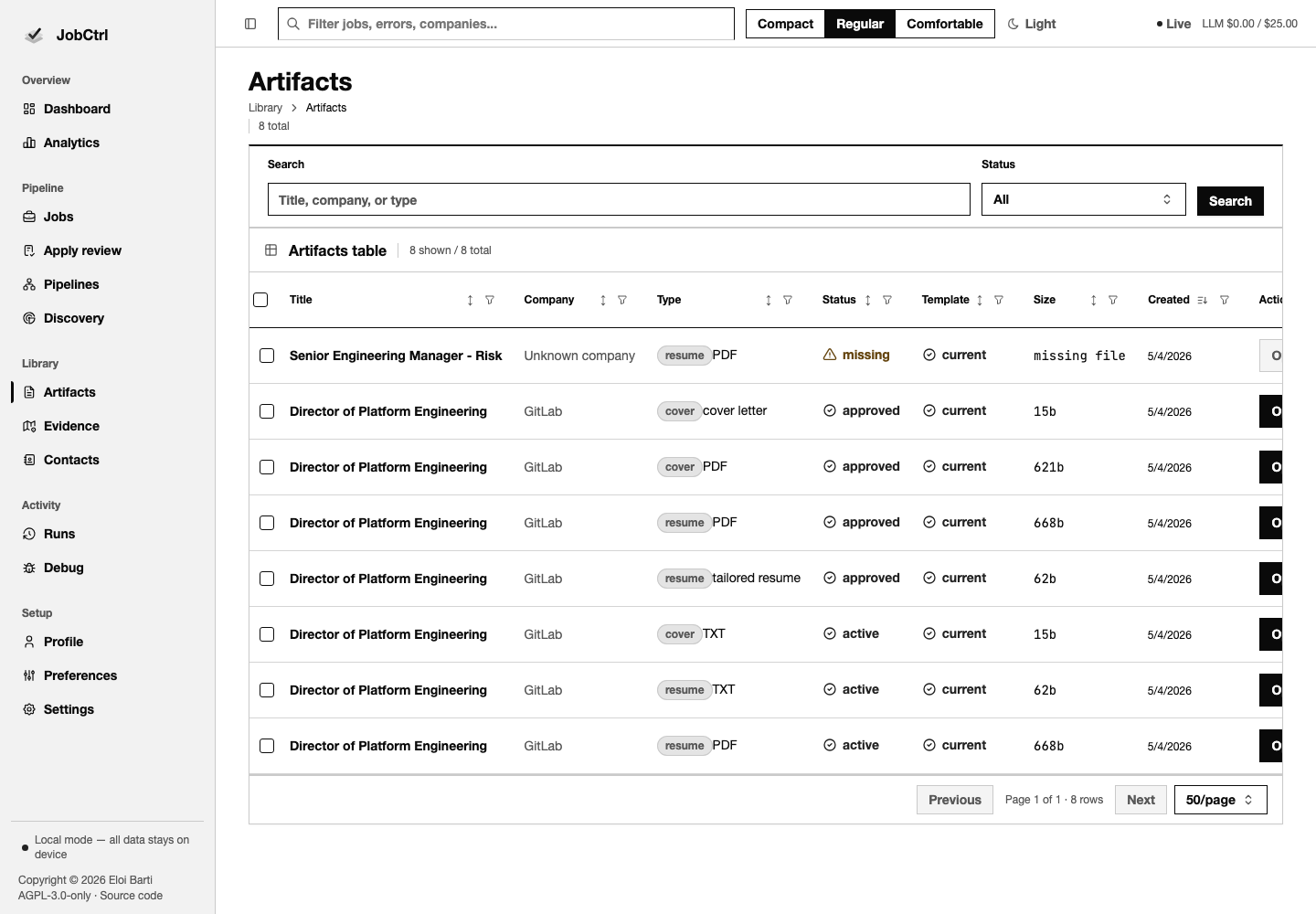
Artifacts lists registered generated files with URL-backed search, filtering, sorting, and pagination. Open an item for its preview and audit; open the related job when the decision needs job-level context.
Artifact Detail
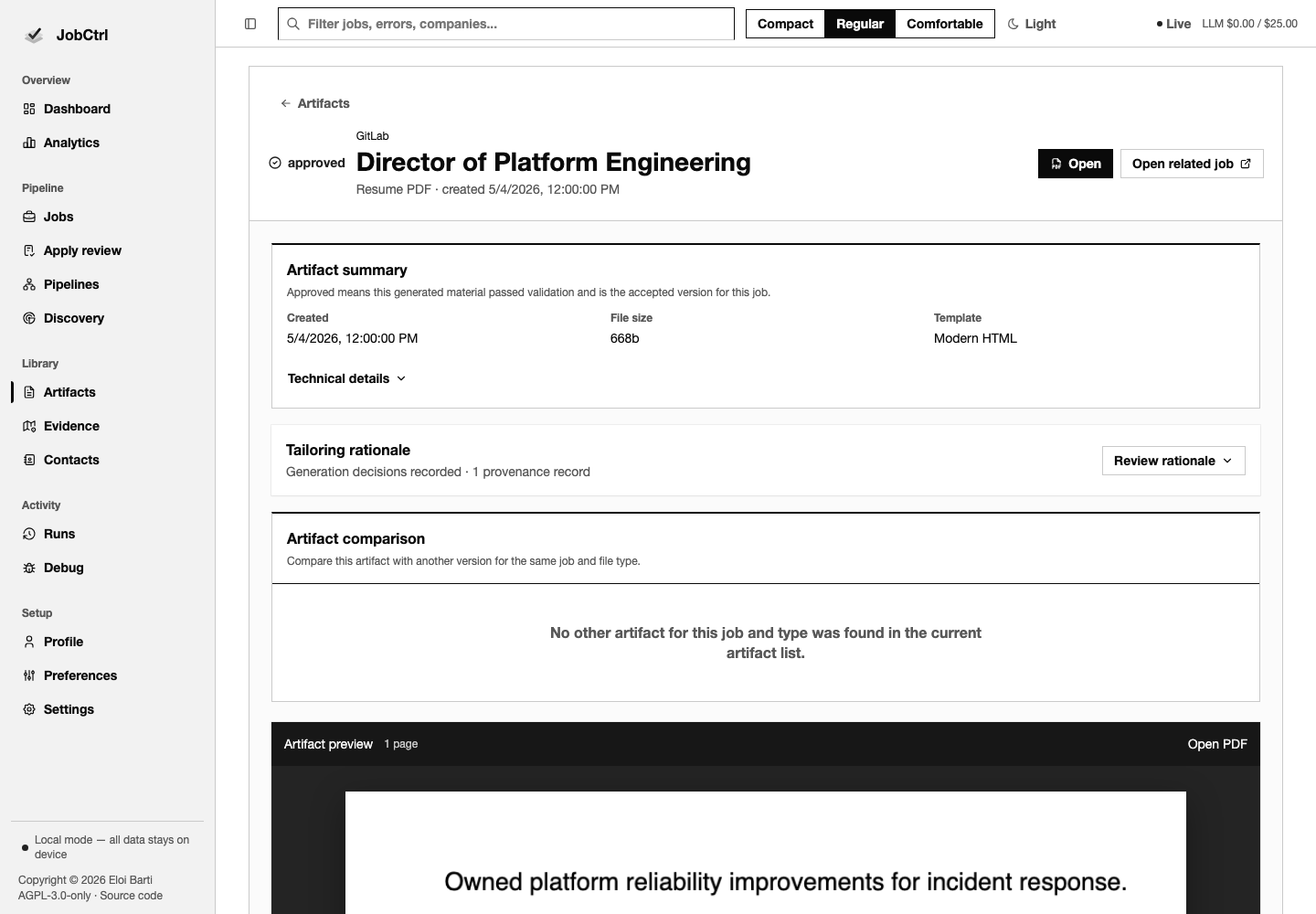
Artifact Detail combines the real in-app PDF preview, when supported, with status, ID, job, local-file metadata, tailoring explanation, warnings, provenance, and same-job comparison. Historical or unavailable artifacts stay explicit instead of masquerading as current material. The audit details come first and the full-width preview follows below them. Evidence uses titles and bounded excerpts; raw artifact, job, path, evidence, and requirement keys stay inside Technical details.
Evidence Map
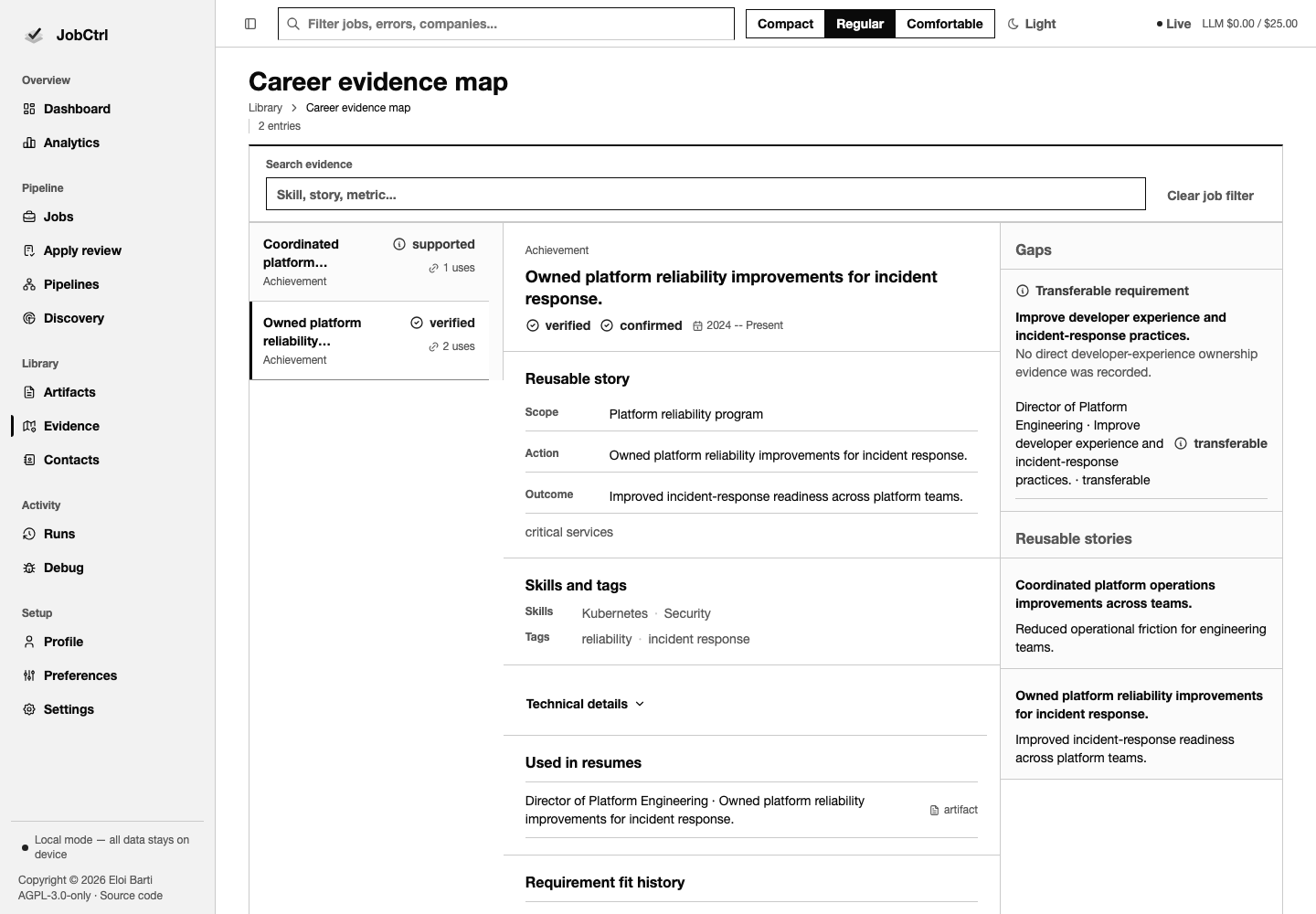
Evidence is a master-detail workspace over canonical achievements and skills. The selected entry shows source pins, freshness, resume and requirement uses, coverage history, and linked jobs/artifacts; the inspector keeps gaps and reusable stories visible. Human-readable labels lead each usage, with raw storage identifiers behind Technical details. The entry, detail, and inspector panes stack when the desktop three-pane layout no longer fits.
Interviews
Interviews (/interviews) browses the full local question library without a job or provider call. The Questions and Sources graph perspectives explore topics and authors; List offers the same card actions. Search and topic/role/format/source filters, graph/list mode, and the selected card are bookmarkable. The Answer, Rubric, and Sources inspector separates guidance, draft criteria, and source-reading limits.
Choose a job to select questions and accepted profile evidence for Beta preparation. Inspect retained inputs, stale warnings, generation history, and independently saved notes; failed refreshes keep the last accepted prep visible. Notes remain unverified user statements. See Interview preparation for the workflow and research-draft limits.
Contacts
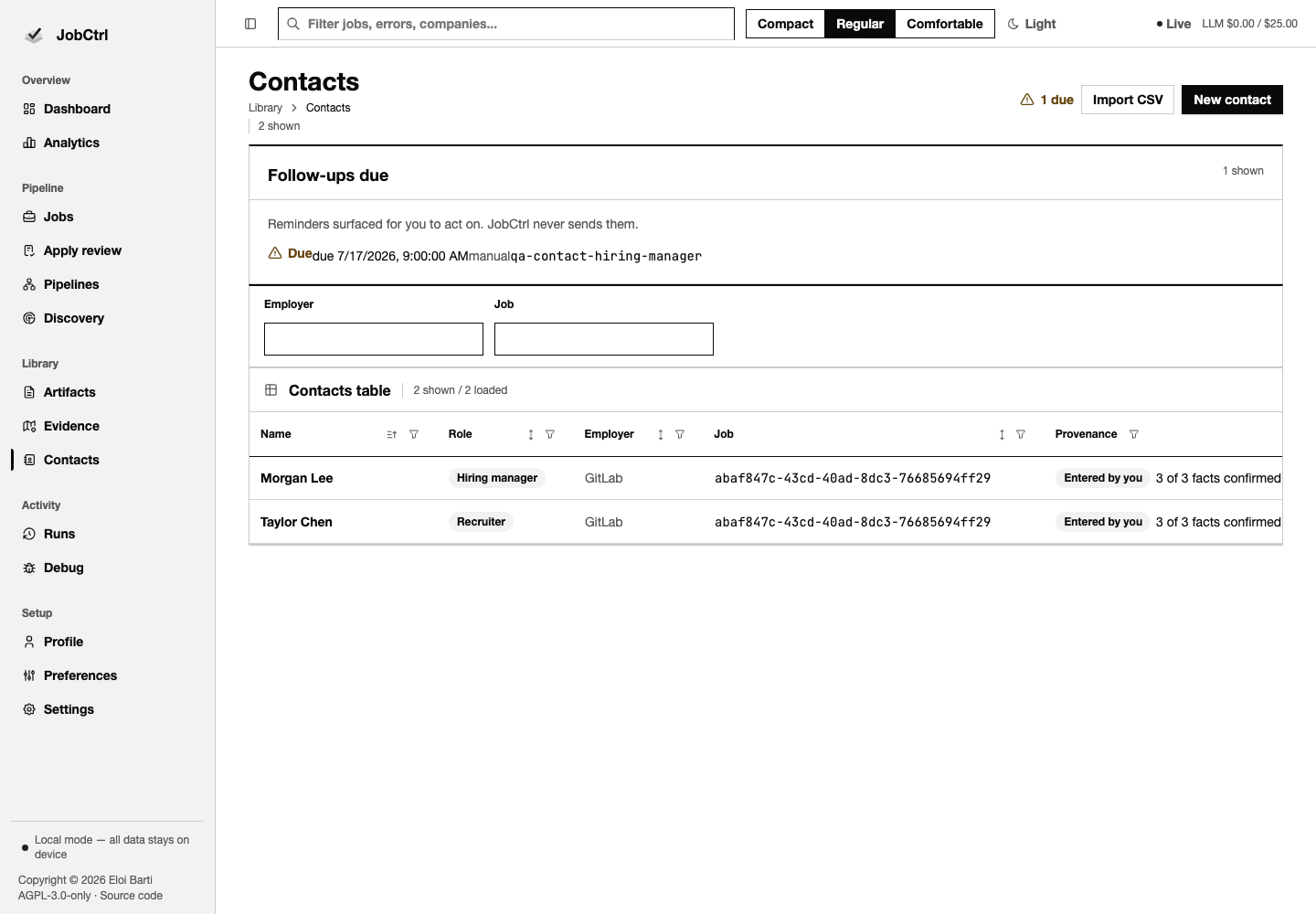
Contacts lists recruiters, hiring managers, referrers, and other application relationships with employer/job links, provenance, due follow-ups, import, and create controls. Supervised research remains job-scoped in Job Detail, and only proposals you confirm become contacts. JobCtrl records and drafts; it never sends outreach.
Contact Detail
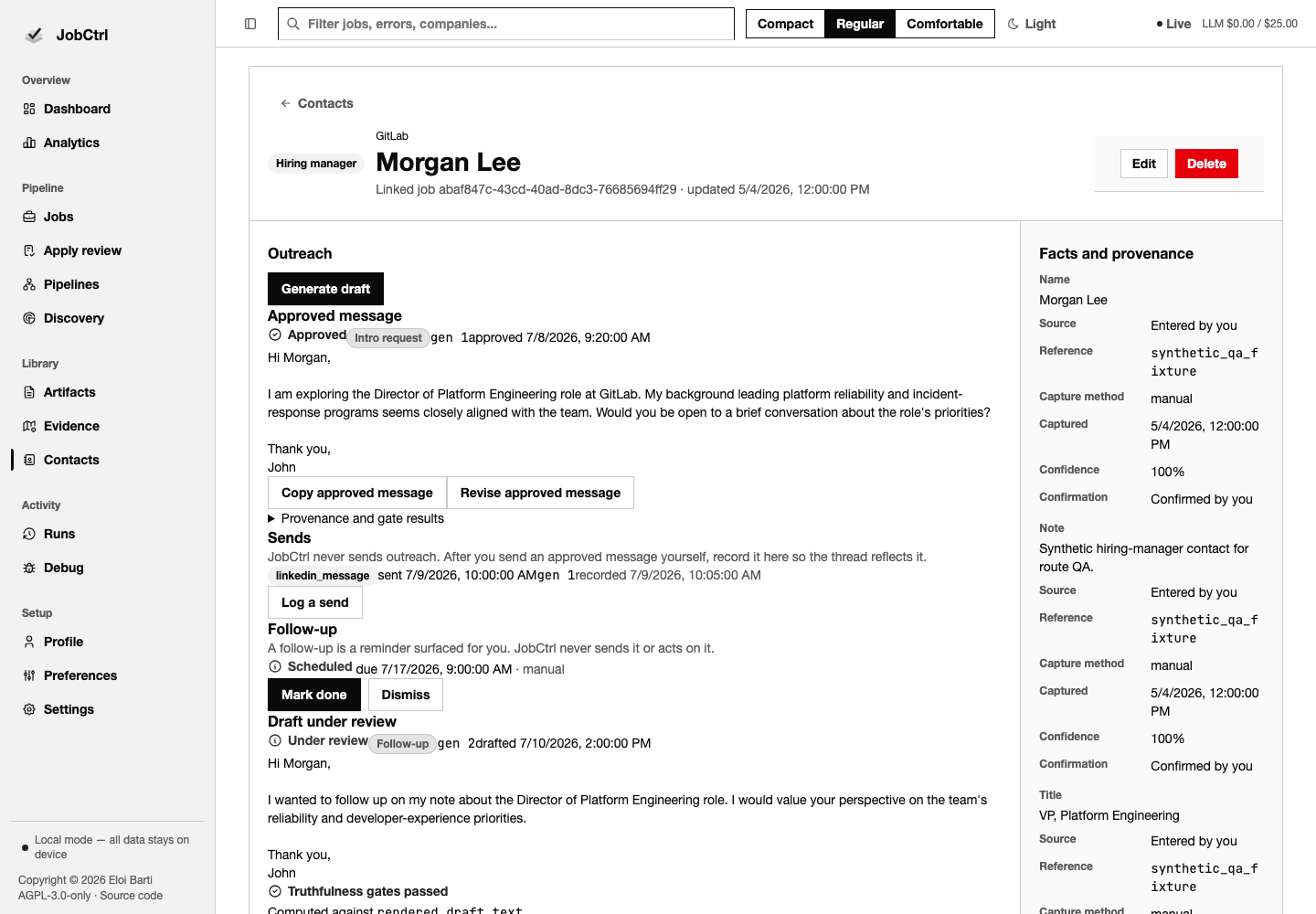
Contact Detail keeps confirmed facts and their provenance beside the outreach thread. Draft generations, edits, gate results, approval, user-attested send logs, and follow-up reminders remain inspectable as separate decisions.
Workflow And Event History
Runs
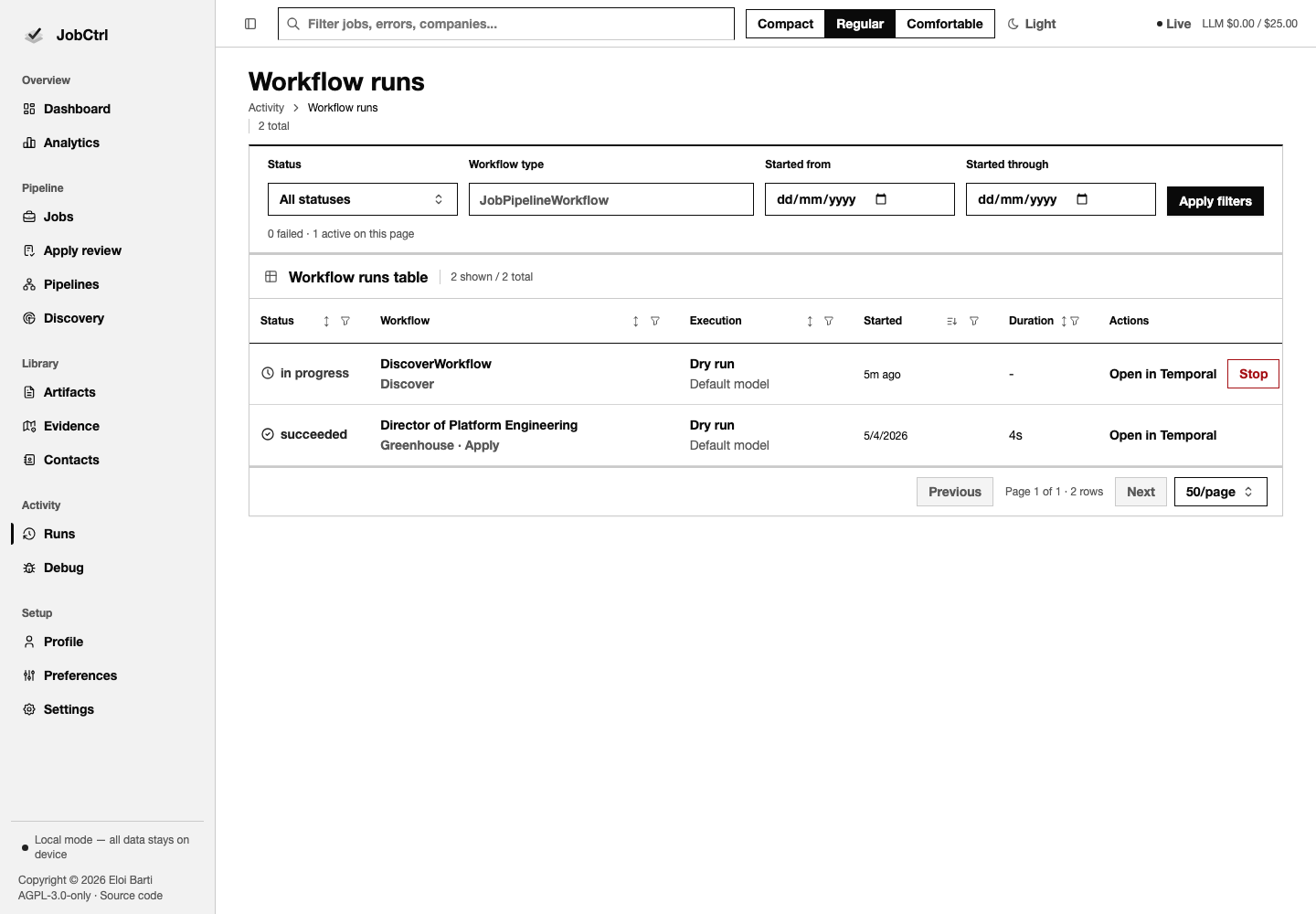
Runs is the durable workflow index. Filter by status, inspect start/update/end time and progress, cancel eligible work, or open the run route for its complete timeline and failure facts. Run detail derives its heading and Selected stages field from the canonical workflow input, so a targeted maintenance run identifies the pipeline stages that actually ran.
Run Detail
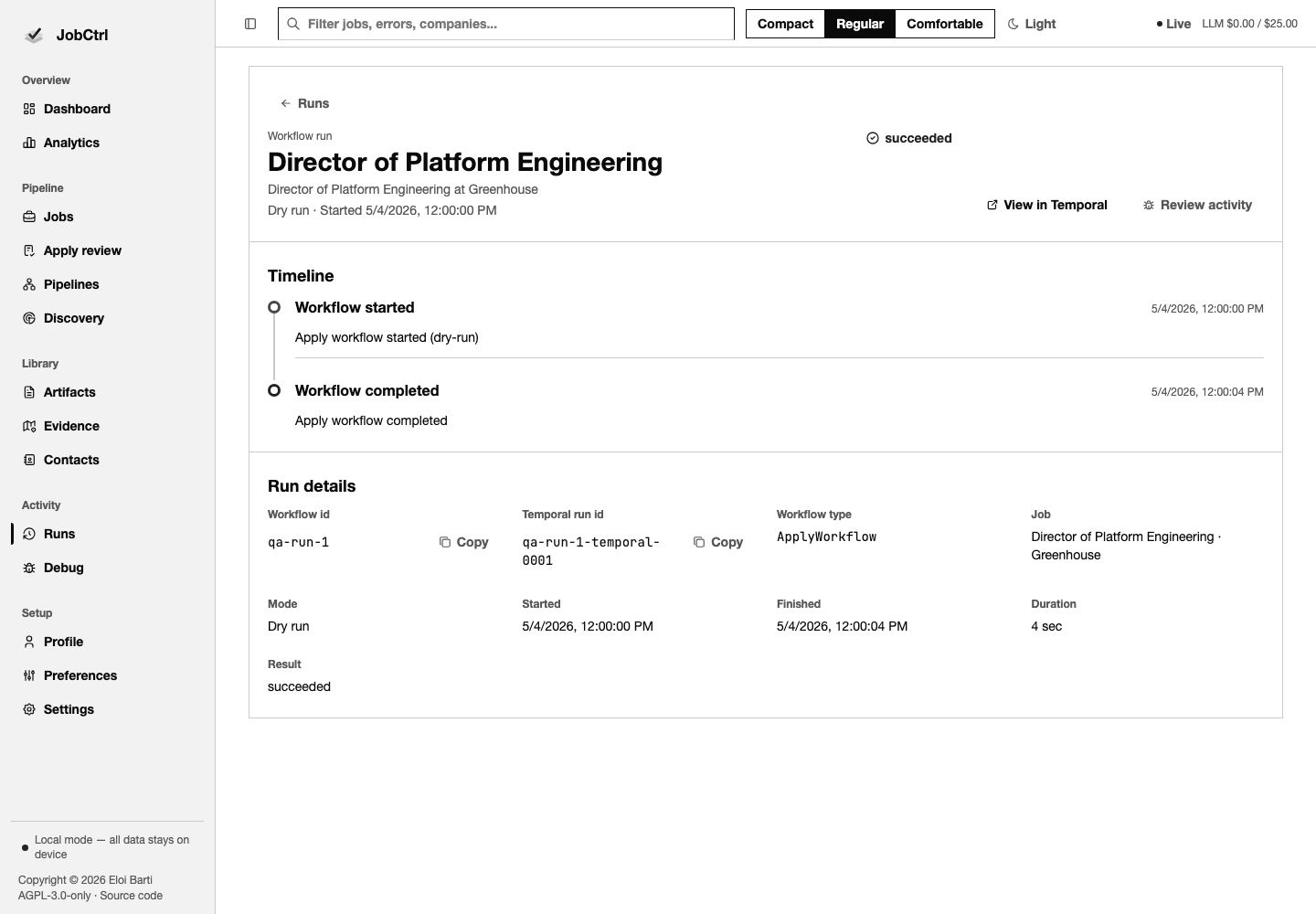
Run Detail shows workflow and Temporal identities, job relationship, mode, selected stage scope, status, timestamps, retryability, failure code/message, and lifecycle events.
Debug
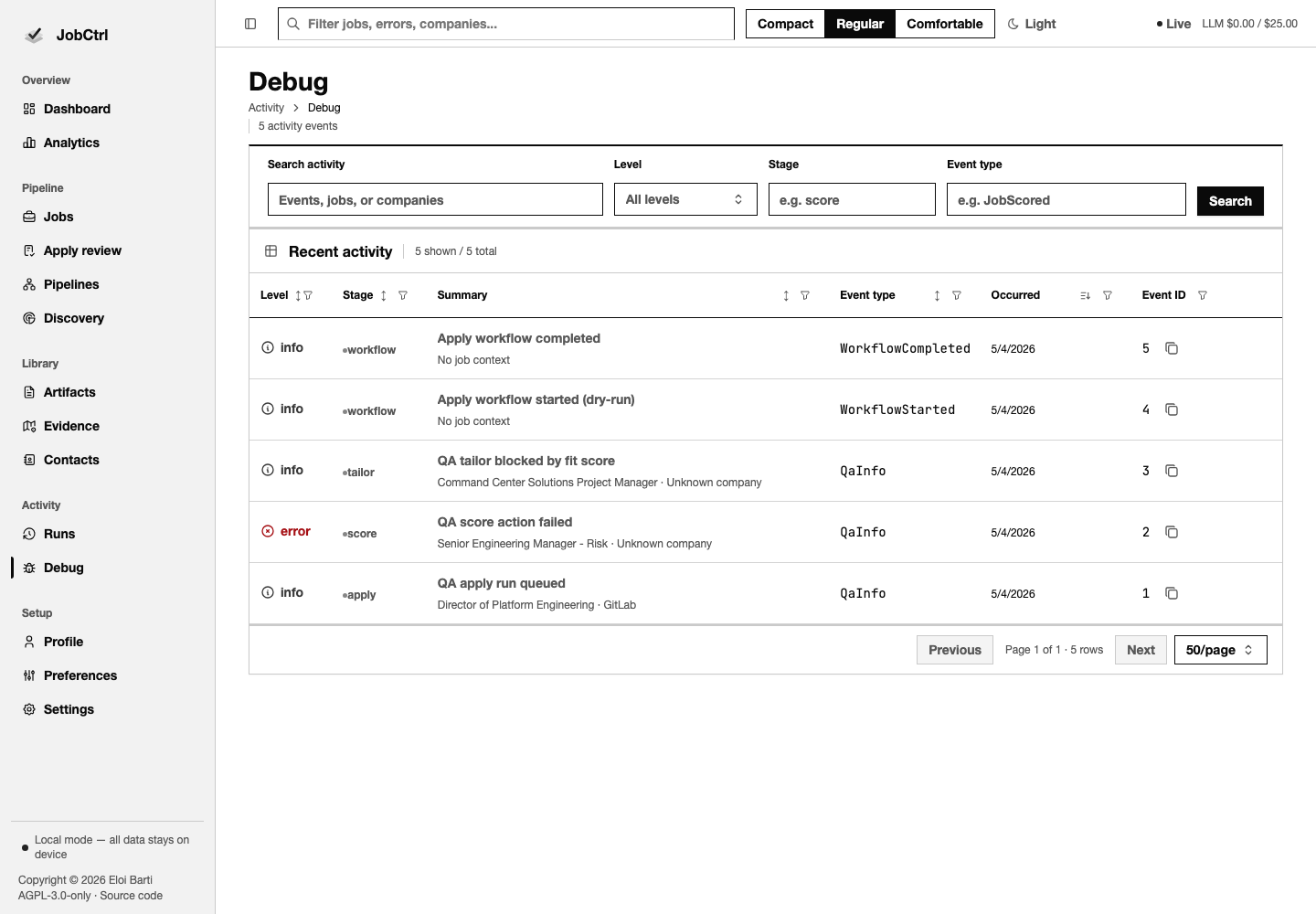
Debug is the event-level index. Query, level, stage, event type, sorting, and pagination stay URL-backed, with direct handoffs to a related job or the full event workspace.
Activity Detail
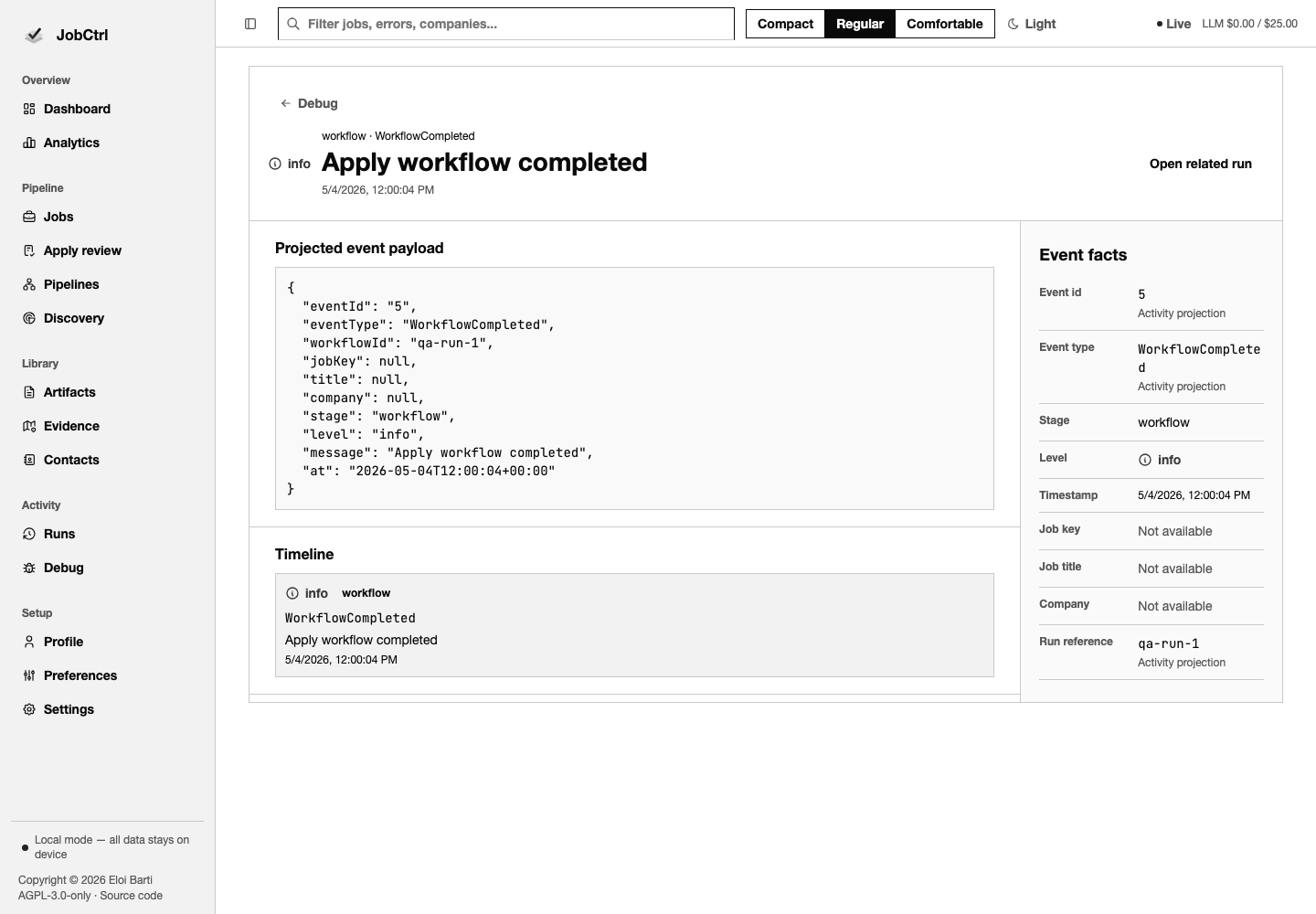
Activity Detail makes the selected event's source explicit: event type, stage, level, timestamp, job reference when present, complete projected payload, and a single-event timeline.
Profile And Setup
Profile
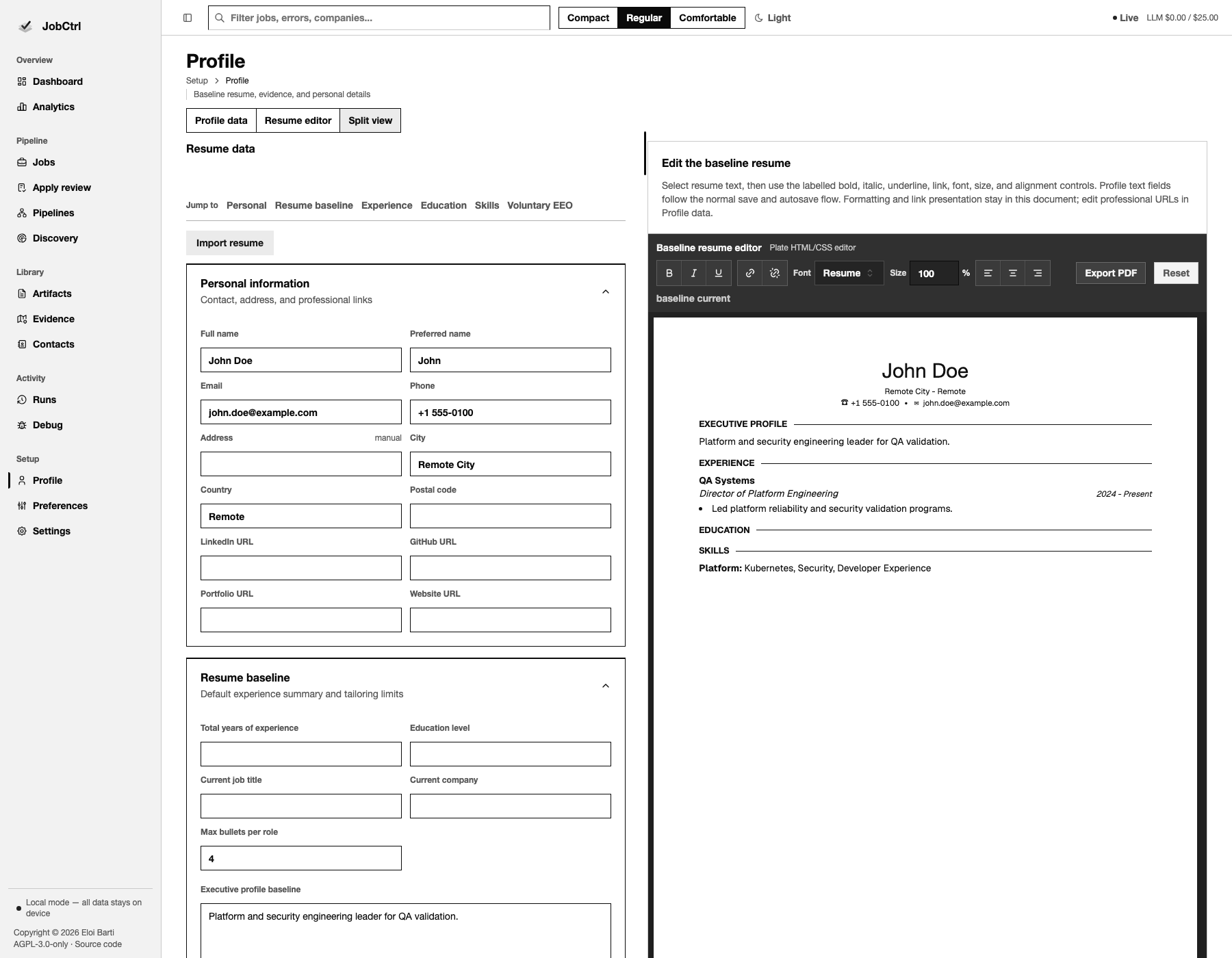
Profile keeps canonical personal, experience, education, skills, evidence, and voluntary EEO fields beside the real baseline resume editor. The resizable preview is the visual feedback surface for the same data, not a second profile source. Below its working desktop width, the preview stacks after the editor instead of shrinking the document or leaving an unusable resize gutter.
Resume Import
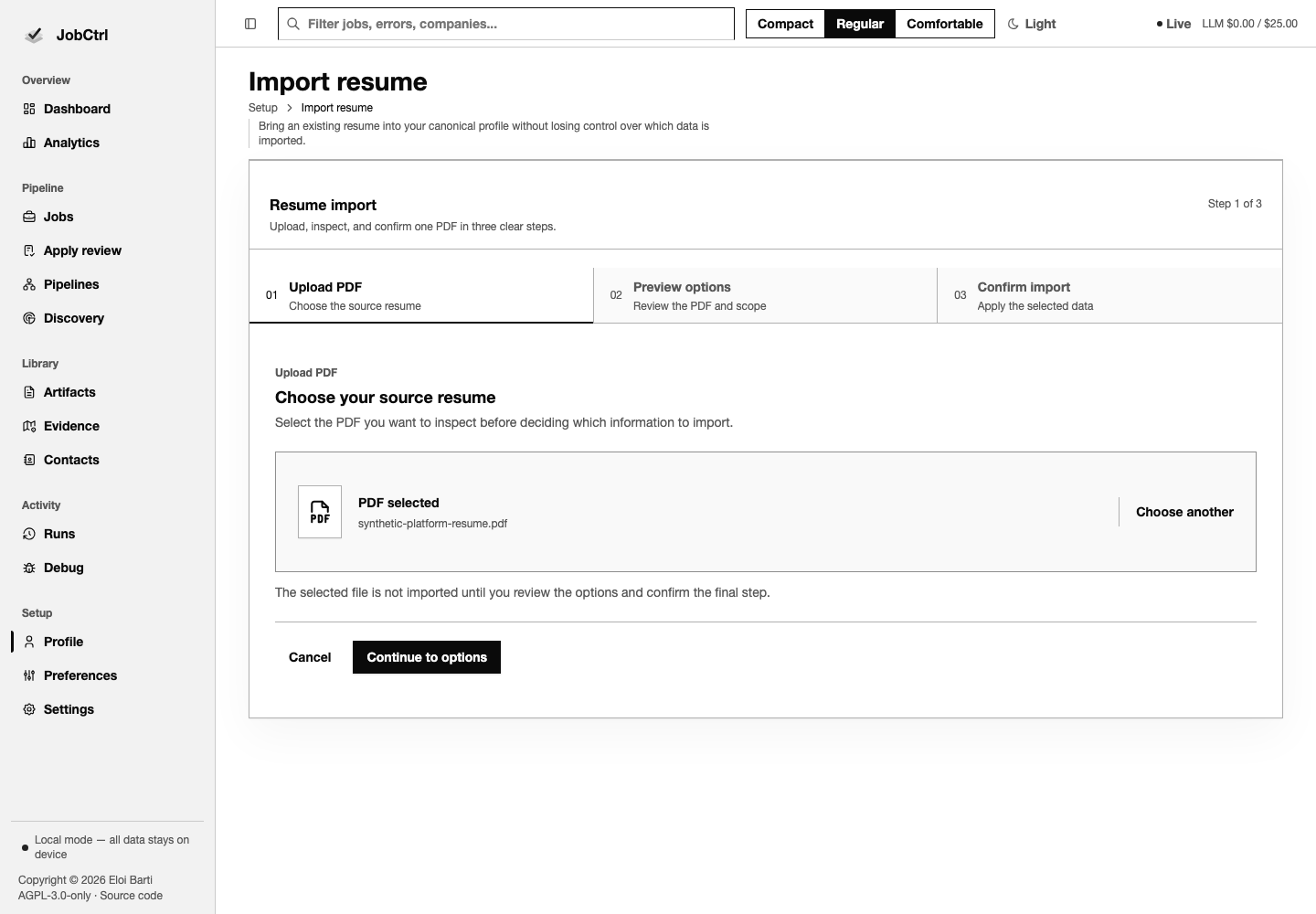
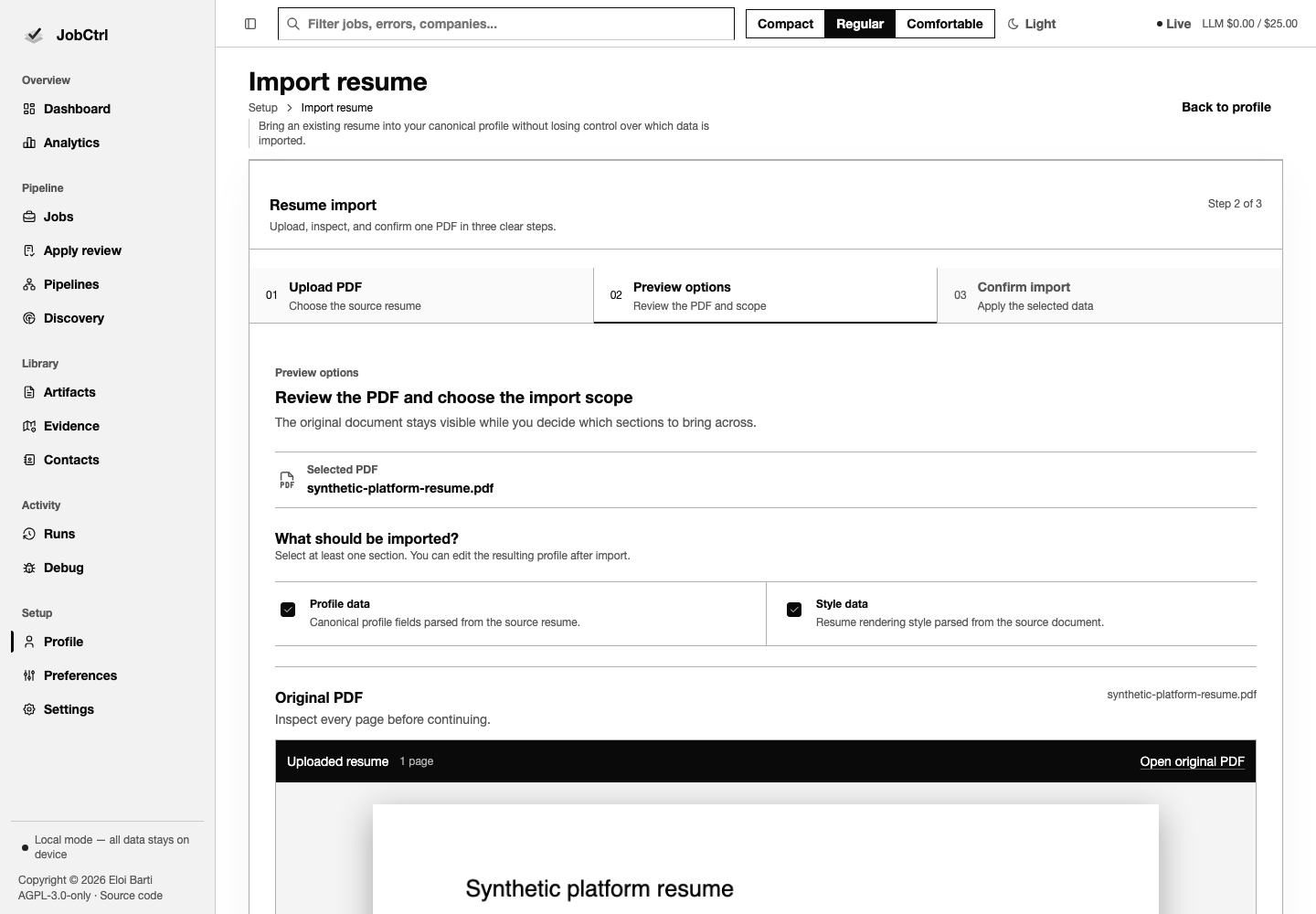
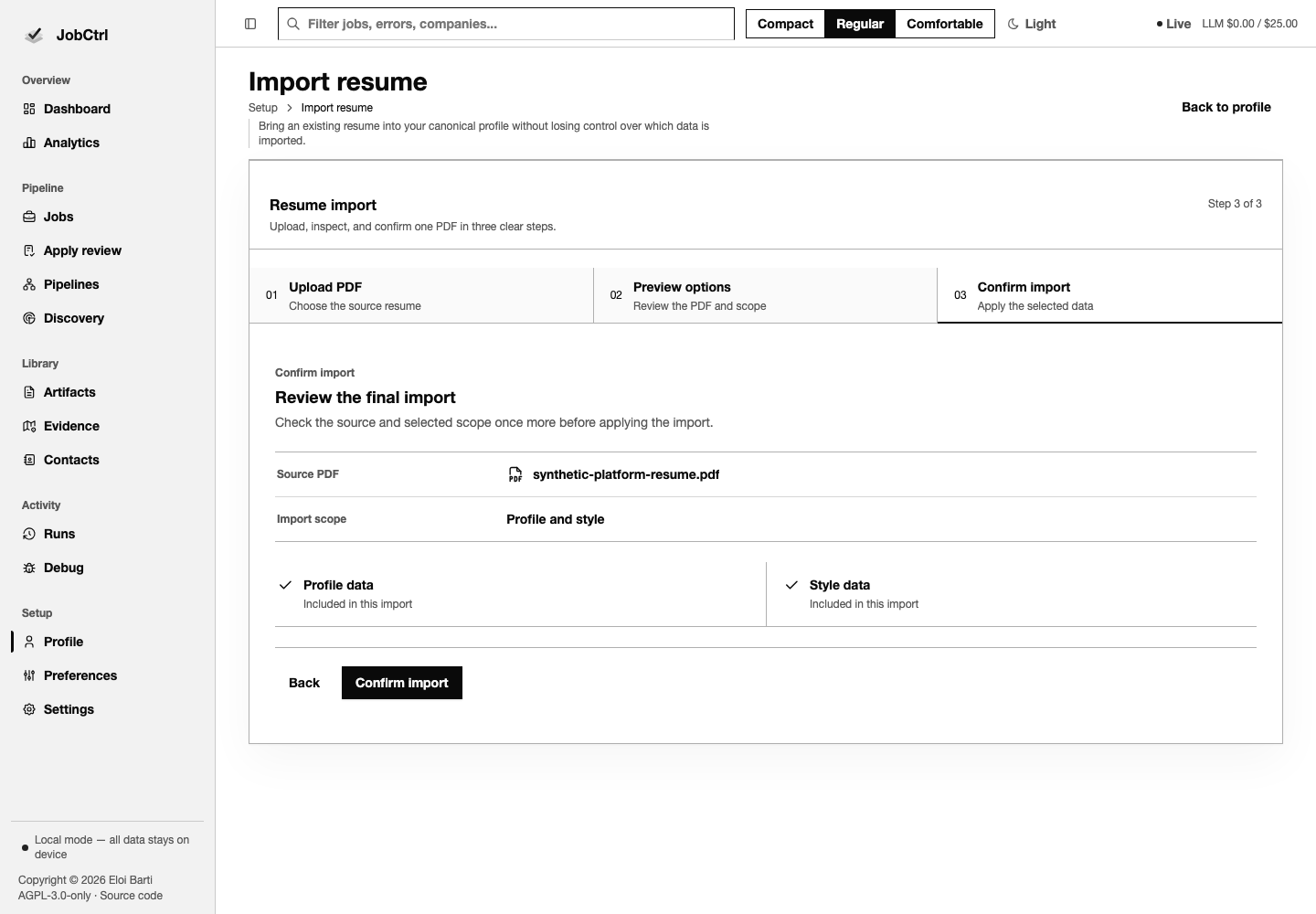
Resume import is a three-route wizard: select a PDF, choose profile data, style data, or both, then confirm the exact import. Back and cancel actions keep the pending choice explicit before any profile mutation.
Preferences
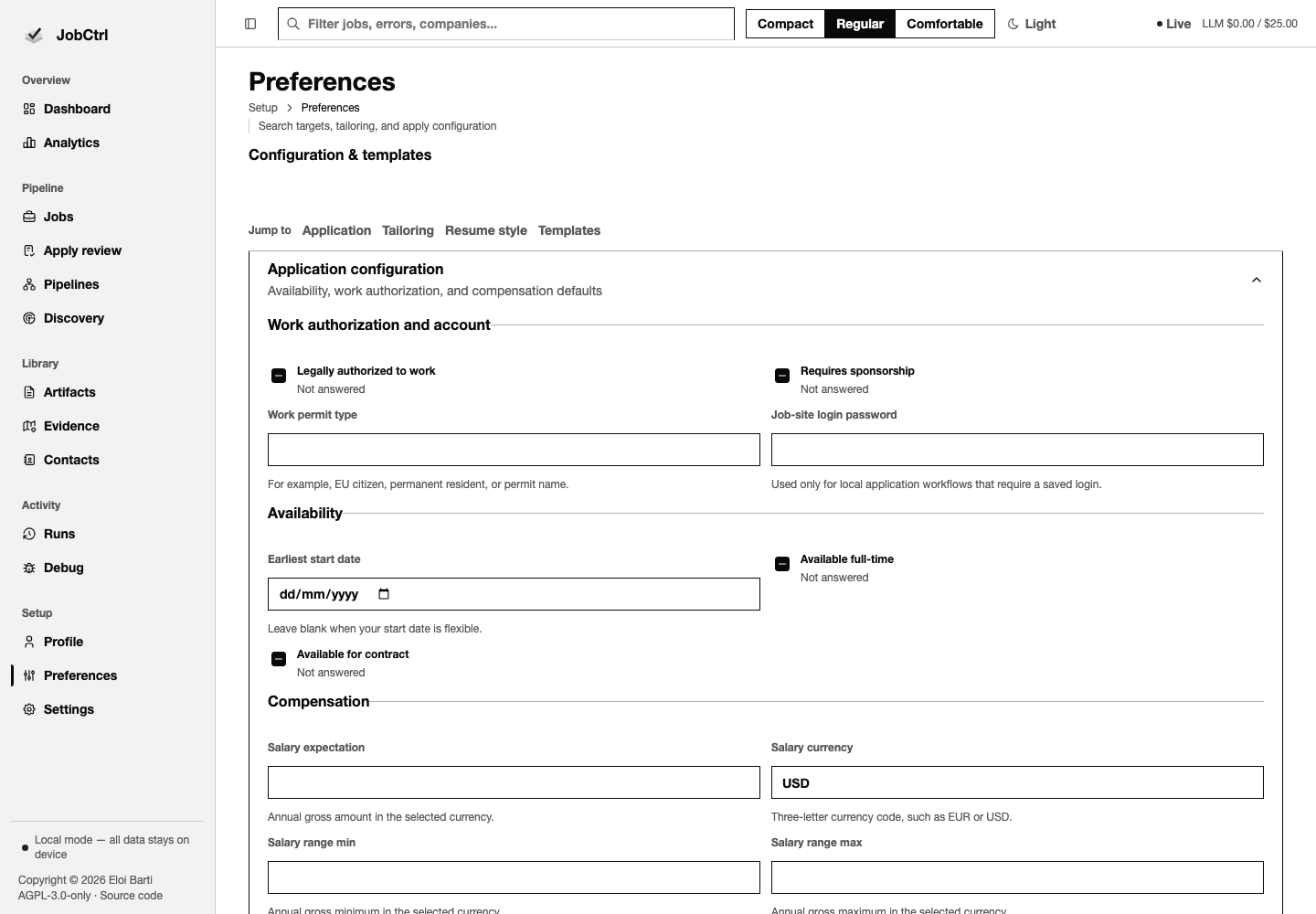
Preferences organizes the existing application fields, tailoring content and voice rules, quality gates, resume style, and template versions into adaptive sections and semantic tabs. The template toolbar sits above the full-width production resume preview; autosave/undo and every original value, validation, locked reason, version, and default action remain available.
Settings — General
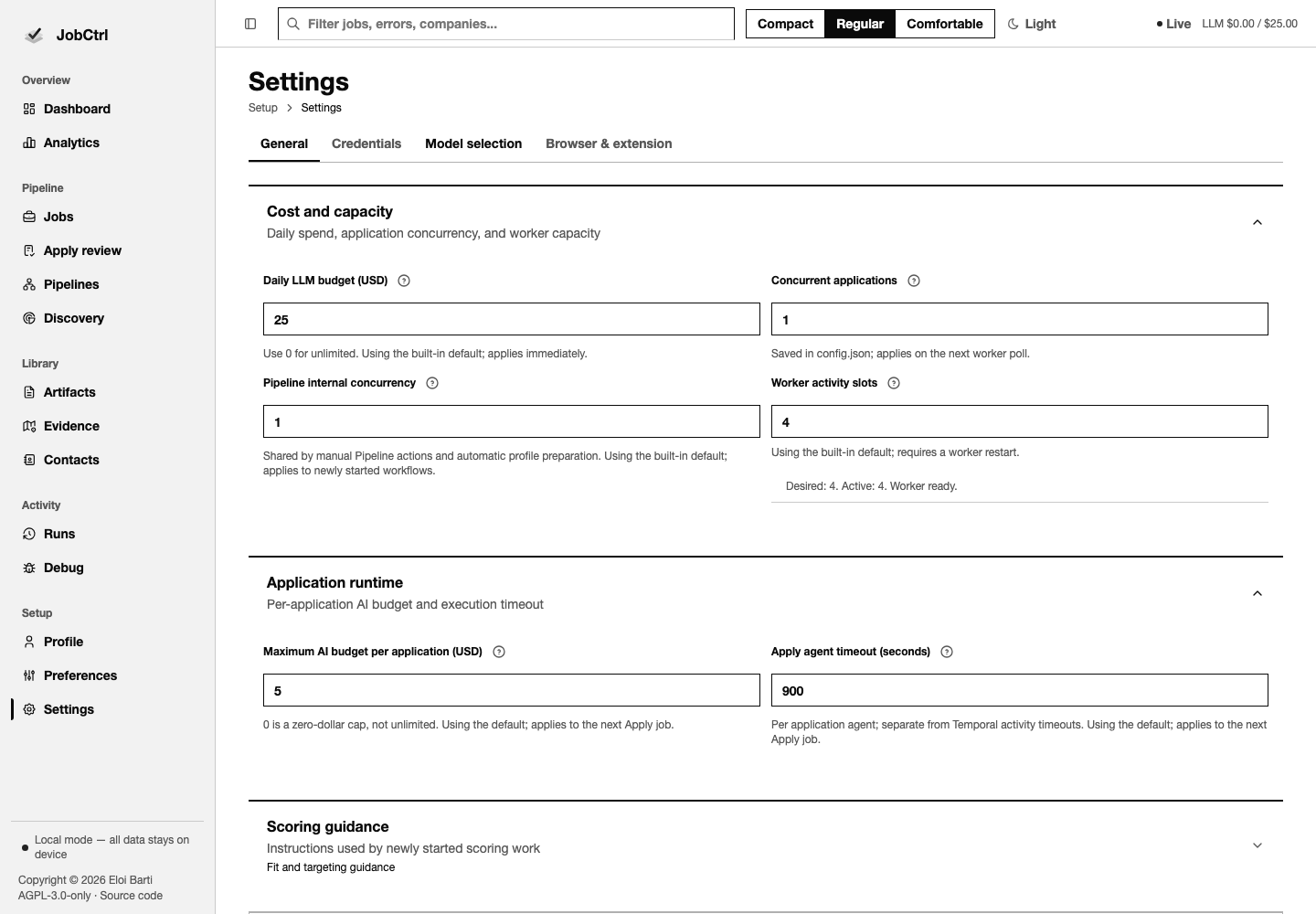
General groups shared spend/capacity and runtime settings with Apply runtime, scoring guidance, and compensation-source policy. Effective values, defaults, overrides, activation timing, validation, autosave/undo, and reset controls stay visible at the owning section.
Settings — Credentials
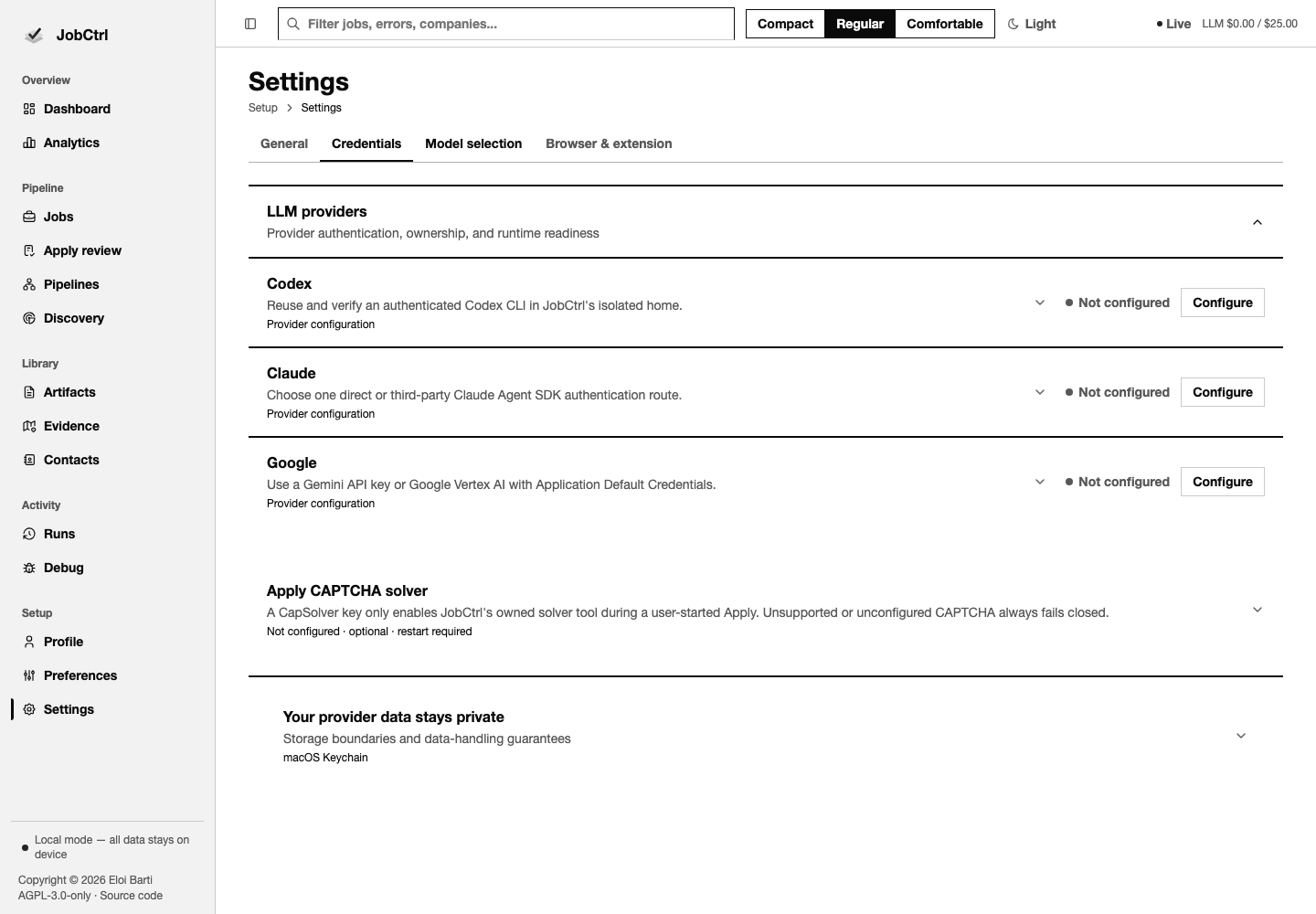
Credentials shows provider readiness, supported authentication modes, whether a secret is configured, sanitized errors, and add/update/remove/verify actions. It never displays stored secret values. A failed provider replacement preserves the previous stored configuration; a failed model-catalog read does not change credentials. Each credential route keeps status, field, and actions together; at narrow widths actions wrap beneath the field and environment-owned controls remain visibly read-only.
Settings — Model Selection
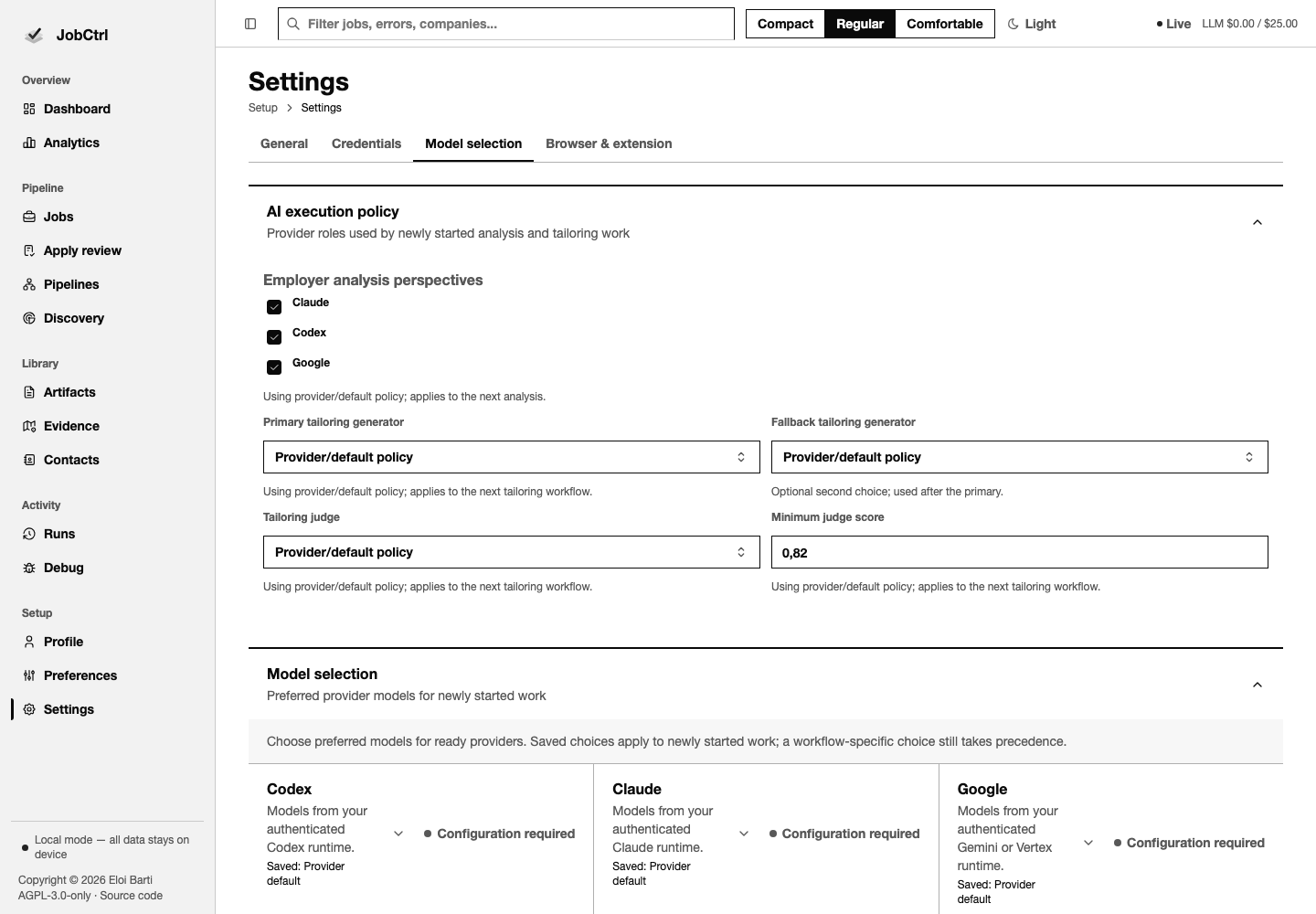
Model selection shows authenticated provider catalogs, preferred models, generator/judge choices, analysis perspectives, and AI execution policy. Ready, unready, invalid, default, and override states remain distinct.
Settings — Browser & Extension
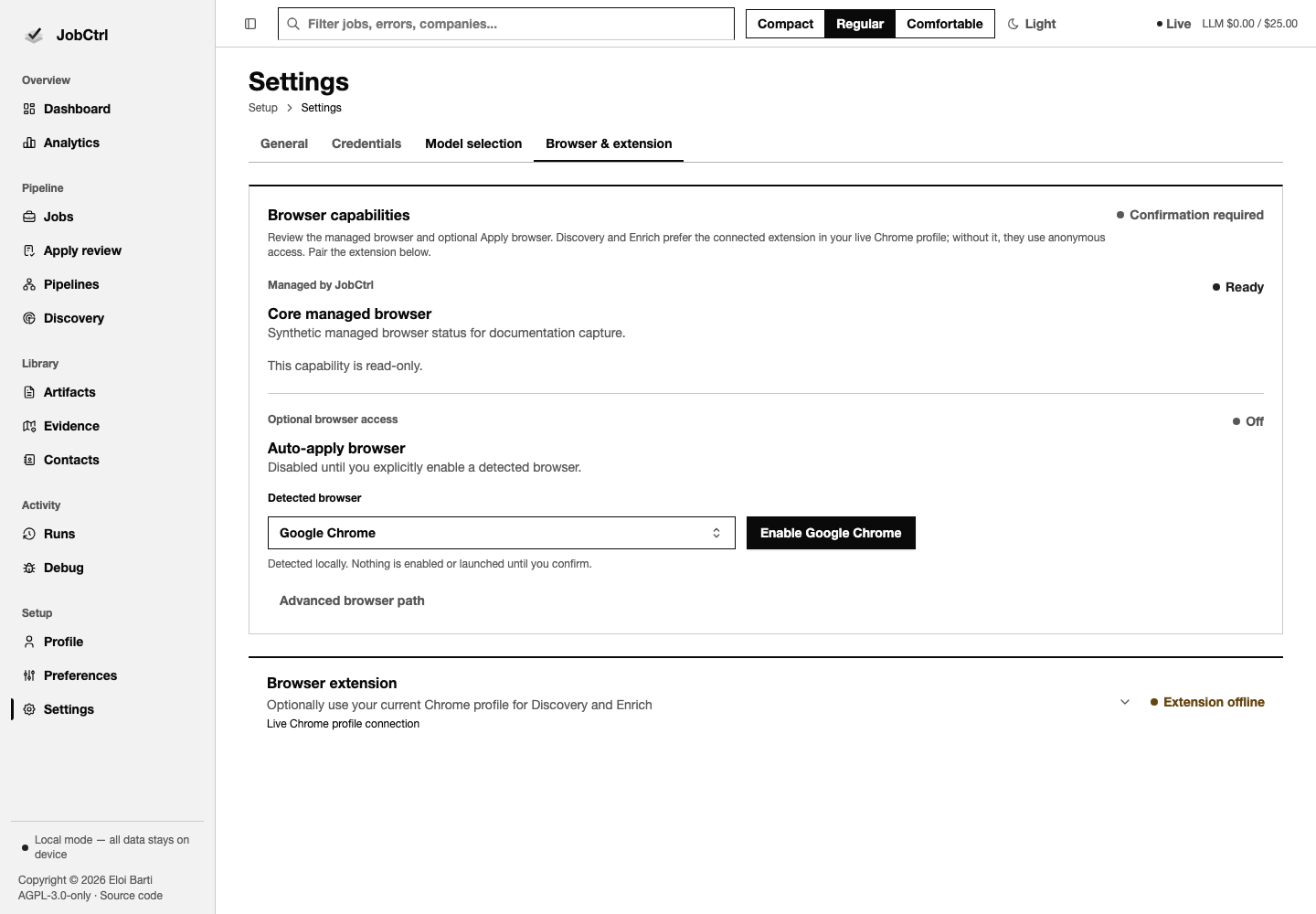
Browser & extension shows capability availability and supported local Chrome or Chromium candidates by label. Detection is read-only: it does not launch, enable, or persist a browser. Explicitly enabling a detected candidate adopts it; an advanced manual executable path remains available. If a candidate disappears before confirmation, enable fails without changing capability state. Extension pairing is a separate explicit action, and Settings does not offer a LinkedIn profile-copy flow. A live status reports whether the paired extension is currently heartbeating from the user's running Chrome profile; integrated Discovery, LinkedIn enrichment, and Enrich retries use that live profile directly and never use a copied profile.